

Creating a household budget in Excel is the first step toward taking control of your finances. It’s not just about filling in a few cells; it’s about turning a simple spreadsheet into your own personal strategic tool for tracking income, analyzing expenses, and, ultimately, planning your goals with the utmost precision.
Between unavoidable fixed expenses and a constantly rising cost of living, many families’ budgets are under severe strain. In an economy where every euro counts, keeping track of your finances is no longer a luxury, but an absolute necessity to ensure stability and look to the future with greater peace of mind.
Many people consider Excel to be outdated. That’s a big mistake. Its true strength lies in a flexibility that no off-the-shelf app can ever offer you. A well-designed spreadsheet isn’t a mass-produced product; it becomes your personal financial roadmap, tailored to your unique needs.
The purpose of this guide isn’t just to teach you how to track your past spending. It’s to give you the tools to plan for the future and take control. A household budget in Excel, when done right, allows you to:
Think of your finances as a small business. This means applying principles of analysis and planning to make the most of the resources you have, minimizing risks, and working toward sustainable growth over time.
By the end of this guide, you won’t just have a template to copy. You’ll understand the logic behind every formula and every chart, giving you the confidence to customize your own tool. We’ll teach you to think like an analyst, turning a dry list of numbers into insights that guide your decisions. It’s the first step toward incorporating more sophisticated analyses in the future and making even smarter financial decisions.
A good household budget in Excel doesn’t just appear out of thin air; it’s built on a logical and organized structure. Now is the time to open up your spreadsheet and lay the groundwork that will support all your future analyses. A solid foundation will save you a lot of headaches down the road.
The first step is to organize your work into separate sheets. Think of each sheet as a specific drawer where you can store a certain type of information. This simple division makes everything cleaner, more intuitive, and much easier to manage as the data starts to pile up.
To get started, you'll need three main sheets:
The "Categories" sheet is crucial because it turns a simple shopping list into data you can actually analyze. Without clear and consistent categories, it’s impossible to understand where your money goes each month. The goal is to create a list that’s detailed enough to be useful, but not so complex that recording expenses becomes a nightmare.
This approach is more important today than ever before. According to recent analyses, mandatory expenses—those you can’t avoid, such as your mortgage and utility bills—account for an ever-increasing share of Italian households’ total spending. By breaking down your expenses in a smart way, you can isolate these fixed costs and immediately see how much flexibility you have with the others.
Here is a starting template that you can use as a foundation and customize to suit your needs.
A detailed breakdown of expense categories for a comprehensive household budget, separating fixed expenses from variable expenses to facilitate analysis.
Fixed expenses are divided into three subcategories. Housing expenses include rent or a mortgage, building maintenance fees, and waste disposal fees. Utility bills include electricity, gas, water, internet, and phone. Fixed transportation costs include car payments, insurance, and vehicle registration fees.
Variable expenses also cover three areas. Food expenses include groceries, market purchases, and ready-to-eat meals. Health expenses include pharmacy costs, doctor’s visits, and copayments. Variable transportation expenses include gasoline and public transportation tickets.
Discretionary spending is broken down into leisure—restaurants, movies, the gym, and hobbies—shopping, which includes clothing, electronics, and books, and vacations, which include flights, accommodations, and activities.
This table is a great starting point. The important thing is that the structure you choose works for you.
A tip from someone who’s been there: to avoid typos and speed up data entry, use Excel’s “Data Validation” feature. With just a few clicks, you can create a drop-down menu in the “Transactions” sheet that pulls items directly from your “Categories” sheet. Zero errors, maximum speed.
Now let’s move on to the “Transactions” sheet. This is where you record every transaction. Formatting is your best friend: start by setting the columns containing amounts to“Currency” format (€) and those containing dates to“Date” format. This simple step prevents calculation errors and makes the sheet much easier to read right away.
To make your data truly dynamic and easy to filter, convert your data range into an official Excel table. You can find it in the "Insert" > "Table" menu. This feature is a game-changer: it automatically adds filters and styles, and, most importantly, ensures that formulas and charts update automatically whenever you add new rows. If you want to learn all the tricks, we’ve written a comprehensive guide on how to create an Excel table to manage your data.
This cyclical process— record, analyze, monitor —is what transforms a simple spreadsheet into a tool for active and informed financial management.
To be effective, the column structure in your "Transactions" sheet should include at least the following elements:
With this solid foundation, you're ready for the next step: bringing the numbers to life and making them speak through the right formulas.
Keeping track of your income and expenses is just the starting point. The true potential of your family budget in Excel is unlocked when you let the formulas do the work for you. They’re what turn a list of raw data into instant answers to the questions that matter most.
A budget without automation is like a calculator without an "equals" key. It shows you the numbers, but it never gives you the result. With the right formulas, however, you can move beyond simple record-keeping to actual analysis, saving time and gaining a clear, up-to-date view of your financial situation.
Let’s start with the basics. The SUM function is the most intuitive: it adds up all the numbers in a range of cells. You’ll use it in the “Summary” sheet to calculate the total of the income and expenses recorded in the “Transactions” sheet.
But the real game-changer is SUMIF. This is the formula that powers your budget. It lets you sum only the values that meet one or more criteria you choose. Simply put, it answers questions like: "How much did I spend on groceries in March?"
Let's say you want to calculate all the expenses for the "Housing" category in the "Summary" sheet. The formula would look something like this:
=SUMIF('Transactions'!C:C, 'Transactions'!D:D, "Residential")
Let's take a closer look:
'Movements'!C:C This is the column containing the amounts to be added.'Movements'!D:D This is the column listing the categories associated with each expense."Residence" It is the criterion—that is, the "keyword"—that the formula looks for to determine what to add.Once you've entered it, just drag it to all the other categories. Your summary will fill in automatically, giving you an accurate snapshot of your spending habits without you having to do a single calculation by hand.
Once you understand where your money is going, the next step is to make sure you stay within the limits you’ve set for yourself. This is where the IF function comes in—one of Excel’s most powerful logical tools. Basically, you tell it to do one thing if a condition is true, and another if it’s false.
You can use it, for example, to create an automatic alert system. Let’s say you have a monthly grocery budget of €500 and that the total, calculated using the formula above, is in cell B5 of your “Summary” sheet. You could write:
=IF(B5>500, "Budget exceeded!", "OK")
This formula is very simple: it checks whether the value in B5 is greater than 500. If so, it displays "Budget Exceeded!"; otherwise, it displays "OK." It's an incredibly effective way to see at a glance whether you're going over budget.
One trick to make these alerts even more noticeable is to combine the IF function with Conditional Formatting. You can set up a rule that colors the cell red whenever the text inside it changes to "Budget Exceeded!". This provides an immediate visual cue.
As your file grows, you’ll need to link information scattered across different sheets. For years, the go-to function has been VLOOKUP, but its successor, XLOOKUP, is much more flexible and powerful.
Imagine you want to assign a "type" (Fixed, Variable, Discretionary)—which you’ve defined in a table on the "Categories" sheet—to each expense category. XLOOKUP can retrieve that information and automatically populate it on the "Transactions" sheet every time you enter a new expense.
Its basic structure is very logical:
=VLOOKUP(value_to_search_for; column_to_search_in; column_to_return_the_result_from)
This feature is perfect for enriching your data and enabling more in-depth analysis, such as calculating the total for fixed expenses or variable expenses alone. It’s the key to transforming your family budget in Excel from a simple ledger into a tool that connects and interprets information for you.
Mastering these formulas doesn’t mean memorizing complex syntax. It means understanding the logic behind them so you can adapt them to your needs. Every formula you learn is another piece of automation you add, bringing you one step closer to full control of your finances.
Numbers are the foundation, but it’s the visualizations that turn a spreadsheet into a control center for your finances. An effective family budget in Excel simply can’t do without a dashboard—a visual tool that lets you spot trends at a glance, without having to sift through row after row of data.
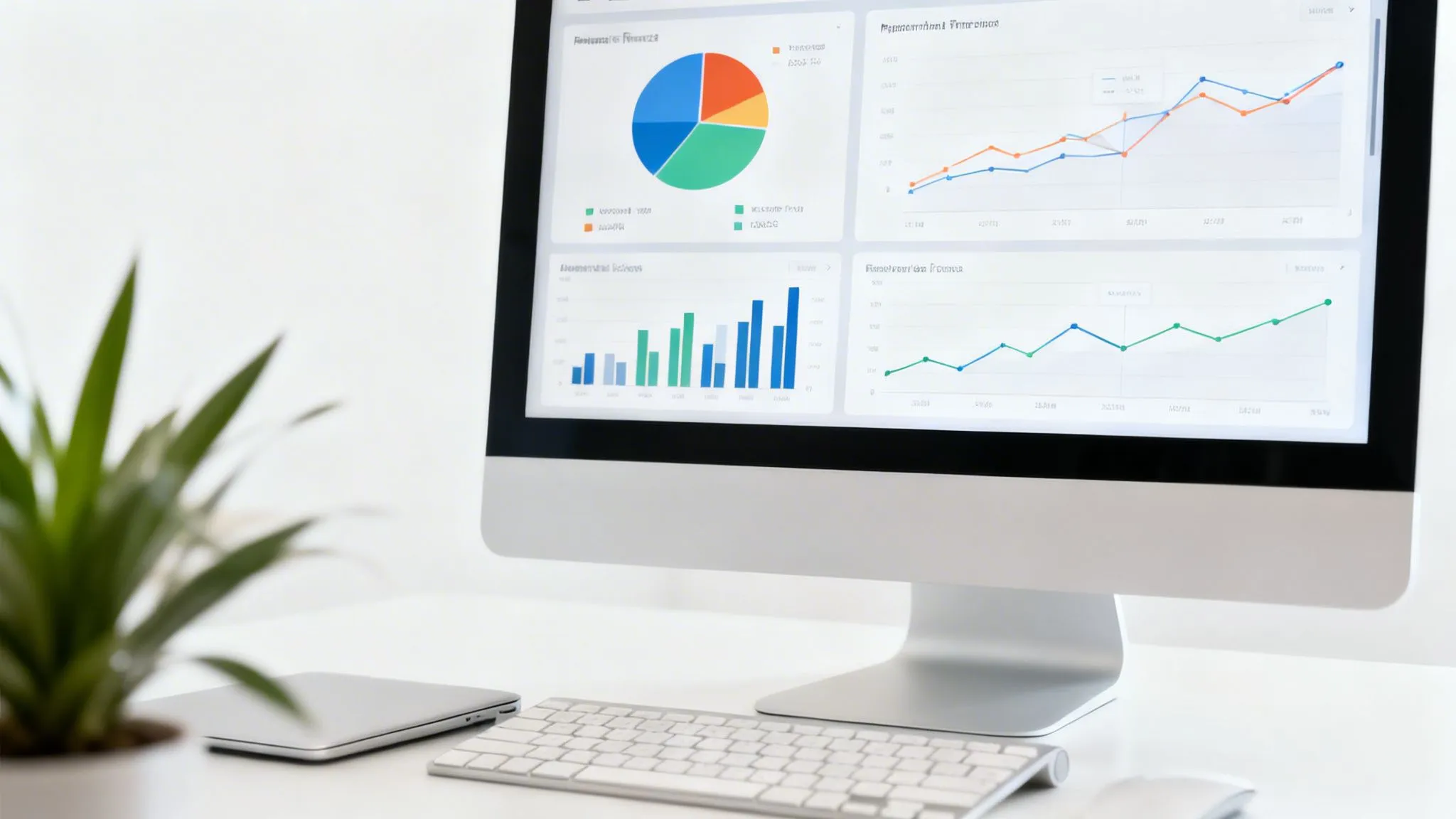
Not all charts tell the same story. The key is to choose the visualization that best suits the information you want to convey. For a financial dashboard that really works, there are three types of charts you can’t do without.
Creating these charts is very easy. Select the data you want to use in the "Summary" sheet (for example, the categories and their totals) and go to "Insert" > "Charts." Excel will suggest the most suitable options. For a more detailed guide, check out our article on how to choose the right chart types for your data.
If you want to take your family budget analysis in Excel to the next level, pivot tables are a fantastic tool. A pivot table lets you aggregate, summarize, and analyze large amounts of data with just a few clicks, without writing a single formula.
Imagine you want to see the total spending for each category, broken down by month. Creating a view like that using formulas would be a complicated task. With a pivot table, it takes less than a minute.
A pivot table is like having an analyst at your fingertips. It lets you "play" with the data by dragging fields such as "Category," "Month," or "Payment Method" to instantly create custom reports and uncover connections you might otherwise never have noticed.
To create it, select the entire data table in the "Transactions" sheet, go to "Insert" > "PivotTable," and follow the wizard. This will allow you to answer specific questions such as: "How much did I spend on my credit card in the 'Restaurants' category in June?"
Data filters (known as "slicers") are the finishing touch that makes your dashboard truly interactive. They are visual controls that you can link to charts and pivot tables to filter data in real time.
For example, you can create a filter for the months of the year. When you click on "January," all the charts on the dashboard will automatically update to show only the data for that month. You can add another filter for categories and, with just two clicks, view only the expenses for "Transportation" in "April."
This feature transforms a static report into a dynamic tool. You go from simply viewing data to actively querying it, getting immediate answers without having to edit formulas or charts. To add them, select a pivot table and go to "Analyze PivotTable" > "Insert Data Filter." Choose the fields you want to use, and your dashboard will become a powerful financial exploration tool.
Having a functional spreadsheet is a great first step. But the real value of a family budget in Excel lies not in creating it, but in using it. It’s a living tool that grows and evolves with you, giving you the clarity to make informed financial decisions, month after month. The work that makes a difference starts now.
Keeping an active budget transforms it from a simple record of past expenses into a roadmap for the future. You’ll learn not to be at the mercy of your expenses, but to anticipate and manage them proactively, laying a solid foundation for your financial peace of mind.
Once a month, set aside some time for an essential task: reconciliation. It’s a term we’ve borrowed from business accounting, but the process is very simple. It involves comparing the transactions you’ve recorded in your Excel spreadsheet with your bank and credit card statements.
The purpose is twofold:
This check gives you confidence in the numbers you work with. It’s a habit that takes less than an hour a month, but its value in terms of accuracy and peace of mind is immeasurable.
After a few months, you’ll start to build up a useful data history. This is when you can begin to perform more in-depth analysis. Use charts and pivot tables to identify recurring patterns and trends. You might notice, for example, a consistent increase in utility bills during the winter months or a spike in “Leisure” expenses during the summer.
Identifying these seasonal expenses or recurring increases allows you to plan ahead. Instead of being caught off guard by a higher gas bill in January, you can start setting aside small amounts in the months leading up to it. It’s the exact same principle that small and medium-sized businesses use for inventory and cash flow management, applied on a household scale.
The best decisions are based on data, not on gut feelings. Analyzing your past spending habits is the most effective way to anticipate and prepare for future needs, turning uncertainties into concrete action plans.
A budget isn't just about keeping your spending in check—it's about actively building your future. Use the information you've gathered to set realistic and, above all, measurable savings goals. Start with clear and simple goals:
This approach becomes even more crucial in an uncertain economic climate. Several surveys point to growing difficulty in covering expenses and a decline in the propensity to save. You can explore the data on the share of expenses in the household budget. Having a plan based on your budget data is your best defense.
Your Excel file contains highly sensitive data. Protecting it is a must. Fortunately, Excel offers simple yet effective tools to do so. The most straightforward approach is to set a password to open the file, preventing unauthorized access.
Just go to "File" > "Info" > "Protect Workbook" > "Encrypt with Password." This simple step ensures that your financial information remains private and secure, giving you the peace of mind to manage your budget in complete confidence.
Keeping a household budget in Excel is a fundamental exercise in discipline. But what happens when you want to stop looking only in the rearview mirror and start making accurate predictions for the future? Excel is an exceptional tool for organizing and aggregating data, but it has its limitations when it comes to predictive analysis and identifying complex patterns that are invisible to the naked eye.

This is where artificial intelligence comes into play. AI-powered data analytics platforms, such as ELECTE, can take the data you’ve carefully compiled in your spreadsheet and elevate it to a whole new level. It’s not about replacing Excel, but about complementing it with computational power that, until recently, was the exclusive domain of large corporations.
While we explore how AI can improve financial management, it’s interesting to note that this same technology is finding practical applications in very different fields, such as online interior design simulation using AI. This shows just how versatile and accessible these tools have become. When applied to your finances, they can truly make a difference.
An AI algorithm does more than just add up your expenses. It analyzes historical data to identify hidden correlations and seasonal trends. To give a concrete example, it can predict with a high degree of accuracy the increase in utility bills during the winter months or calculate the likelihood of unexpected expenses based on your past behavior.
The advantages are tangible:
You might be thinking that all this sounds complicated—something only data scientists would understand. In reality, the real breakthrough lies in the fact that platforms like ELECTE designed to be intuitive. The goal is to eliminate technical complexity and make advanced analysis accessible to everyone.
The principle is simple: you provide structured data from your Excel spreadsheet, and the AI-powered platform handles the "heavy lifting." The output isn't a string of code, but a clear, visual insight—like a chart that tells you, "Watch out: your leisure expenses have gone up by 25% over the last three months."
Think about how a manager analyzes sales data to optimize promotions. Now, you can apply the same principles to your personal finances. The integration of Excel budgeting with the power of AI analysis represents the future of smart financial management, where decisions are guided not only by the past, but by a realistic projection of what might be. If you’d like to learn more, you can read our article on how artificial intelligence is transforming business operations.
When you start using a spreadsheet to manage your household finances, it’s normal to have questions and run into minor practical difficulties. Here are the most common questions, along with straightforward answers and practical solutions to make things easier.
The short answer is: as often as possible. Consistency is key here.
Ideally, you should set aside five minutes every evening to log your daily expenses. If you can’t manage that, every two or three days is fine too. The important thing is to avoid letting everything pile up until the weekend: it becomes a tedious chore, and the risk of forgetting some expenses is very high. Frequent logging gives you a real-time snapshot of your finances, rather than a final tally when it’s already too late to take action.
Car registration, a wedding gift, washing machine repairs: these are the expenses that could throw a wrench in your monthly plans.
The best approach is to create a separate category, such as "One-Time Expenses" or "Contingencies," to keep these expenses separate from your regular spending.
A tip from experience: in your annual summary, calculate the average monthly cost of these expenses. If your car registration costs €240, that’s equivalent to €20 per month . Setting this amount aside—even just mentally—helps you absorb the cost when the bill comes due, without straining that month’s budget.
It depends on how comfortable you are with Excel and how much you want the tool to feel like "your own."
This guide offers you the best of both worlds: we’ll show you how to build it from scratch, but with instructions so detailed that the process becomes almost as easy as filling out a pre-made form.
Managing finances is a team effort, so collaboration is key. The easiest way is to use cloud services like Microsoft 365 or Google Sheets.
Both platforms let you save the file online and work on it at the same time. Changes are visible in real time, eliminating the confusion caused by multiple versions of the file being sent via email and ensuring that you’re both always on the same page. All you need to do is share the document link and grant your partner editing permissions.
Your Excel spreadsheet is a goldmine of data. But to turn those numbers into strategies and forecasts, you need something extra. ELECTE, our AI-powered data analytics platform for small and medium-sized businesses, takes the data you already have and shows you the future of your finances, just as it would for a large corporation.

.svg)


.svg)
.svg)