
Whether you're driving between calls or trying to respond to a customer while your hands are already full, voice commands on Android go beyond being a novelty and become a work tool. On many Android phones sold in Italy, voice control is already built into the Google ecosystem, so no special hardware is needed—you just need to set it up properly and use it wisely. The official guides in Italian demonstrate exactly this approach, from opening the Google app and accessing the microphone to using “Hey Google” with Voice Match, performing Google voice searches on Android, and enabling Voice Match in Italian.
For an Italian SME, the point isn’t just “talking on the phone.” The point is to eliminate friction from repetitive tasks, reminders, messages, quick settings, and even accessibility. Here’s a practical guide, from setting up Google Assistant in Italian for the first time all the way through Voice Access, dictation, routines, privacy, and troubleshooting. By the end, you’ll have a clear understanding of when to use your phone as an assistant, when to use it as a keyboard, and when to use it as an operating interface.
You know that situation where you're merging onto the highway, a client texts you, and you just want to dictate a quick reply without stopping to type? That's when voice commands on Android really come in handy. They don't replace your phone—they turn it into a shortcut to get things done faster.
Google has made voice control a native feature of the Android ecosystem, rather than a separate app that needs to be added. In Italian, the official procedure involves the Google app, the microphone, and “Hey Google” via Voice Match, with localized instructions for smartphones and tablets on Google voice search on Android and Voice Match on Android in Italian. This matters because it lowers the barrier to entry, especially for those who use their phones all day for sales, customer support, logistics, or internal coordination.
Rule of thumb: If an action takes only a few seconds but is repeated often, using voice commands may be the fastest way to do it.
For an SME, the value is clear. A sales representative can set a reminder while moving from one appointment to the next. A manager can open an app, call a contact, or turn on “Do Not Disturb” without having to navigate through multiple screens. And field workers can use their phones without interrupting their workflow.
In the following sections, you'll learn how to set up Google Assistant in Italian, how to tell the difference between Assistant, Voice Access, and dictation, how to use specific commands for your calendar and phone, and how to create routines that combine multiple actions into a single step. You'll also find information on privacy, deleting recordings, and common issues, so you can use it with greater confidence and fewer failed attempts.
Here's an important point for the Italian market: voice activation doesn't require complicated setup or special accessories. You just need the right foundation, and then the rest becomes second nature.
Before changing any settings, check two simple things. Your phone must be set to Italian, and the Google app must be up to date. If these two elements aren’t in order, voice recognition might act like a coworker who understands half of your request and then gets stuck. Having the right foundation makes for a more consistent experience across voice search, the Assistant, and hands-free commands, as explained on the pages about Google voice search on Android and Voice Match in Italian.
For an Italian SME, this step has very practical implications. If the phone accurately recognizes the language, sales representatives can dictate reminders as they move from one client to another; shift coordinators can make quick requests without having to pause on screens; and those who use productivity or analytics tools can more easily turn ideas into action. The point isn’t the technology itself, but reducing unnecessary steps in everyday work.
After the initial setup, the real benefit isn't the initial effect. The benefit is that the phone recognizes the command while you're already working, without forcing you to navigate in and out of menus.
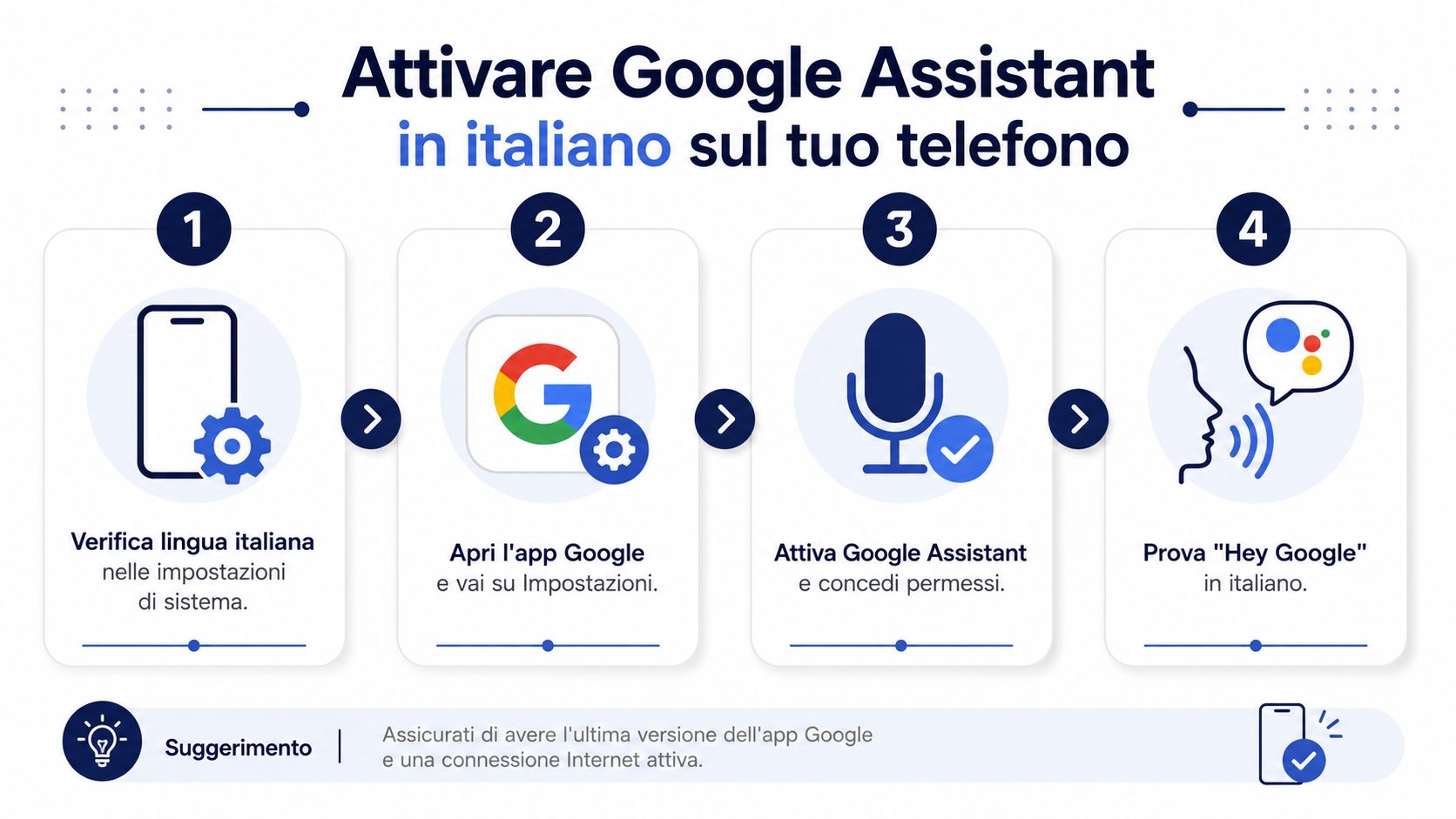
On Android, there are several ways to unlock the device. Motorola explains on its Italian support pages that you can press and hold the power button, say “Hey Google” or “OK Google” after setting up voice recognition on your phone, or swipe up from one of the bottom corners of the phone ( Motorola support in Italian).
| Method | When to use it | Advantage |
|---|---|---|
| Hands-free with Hey Google | When your hands are full | Faster at repetitive tasks |
| Physical button | When you want to avoid the wake word | Useful in sensitive or noisy environments |
| Gestures from the lower corners | When you're already browsing with your hands on your phone | Fast and natural on many models |
| Microphone in the Google app | When you're already starting your search | Simple and straightforward |
If you also want to compare other assistants and figure out which one best fits your workflow, a comparison of next-generation voice assistants might be helpful. The process, however, remains straightforward even without complex comparisons. You don’t have to learn a different procedure for each phone; you just need to choose the method that’s most convenient for your actual use.
Many users lump them together, but they serve different purposes. Google Assistant responds to commands and performs actions; Voice Access lets you control your phone with your voice as an accessibility feature; and voice typing converts speech to text within a text field. If you clearly distinguish these three roles, you’ll avoid unnecessary attempts and immediately know which feature to use.
In the day-to-day operations of an Italian SME, this distinction matters. An owner or office manager can use an assistant to schedule appointments, check reminders, manage travel arrangements, or look up quick information while moving from one meeting to another. The Google Assistant app on Google Play lists practical features such as reminders, alarms, schedule management, navigation, smart home controls, and the ability to adjust phone settings like Do Not Disturb, Bluetooth, Airplane Mode, and the flashlight. In short, Assistant is there when you want to get something done, not just when you want to talk.
Voice Access works differently. Google’s Italian documentation explains that it requires installing the app, granting microphone and system permissions, enabling it in the accessibility settings, and testing it with short commands such as “Back” or “Voice Access Home” on Android. The point here isn’t to ask a question, but to control the phone step by step without touching it. It’s useful for accessibility purposes, but also in situations where your hands are full.
Dictation is the most direct way to type. On Android, the Google Gboard keyboard is the most natural starting point for many people, while the Google app’s microphone helps you enter text or start a quick search. The difference is simple: With Assistant, you give a command; with Voice Access, you control the interface; and with dictation, you convert speech to text.
| Requirement | The Right Tool | When to activate it |
|---|---|---|
| Ask a question or take action | Google Assistant | During the course of our daily work |
| Move the phone without touching it | Voice Access | If your hands are full or you need accessibility |
| Converting Speech to Text | Dictation | When you need to write messages, notes, or emails |
Helpful tip: If you need to check your phone, try Voice Access. If you just need to type faster, use dictation. If you want to perform an action, use Assistant.
For businesses and professionals, the real value lies in its integration with day-to-day work. A voice assistant can serve as a small operational layer, helping to reduce manual steps and keep everything in sync across your calendar, communications, and analytics tools. If you want to understand how it compares to other solutions, a comparison of next-generation voice assistants can be helpful. Ultimately, though, this is a practical choice: you don’t need to learn a different system for every phone—you just need to figure out which tool best fits your specific needs.
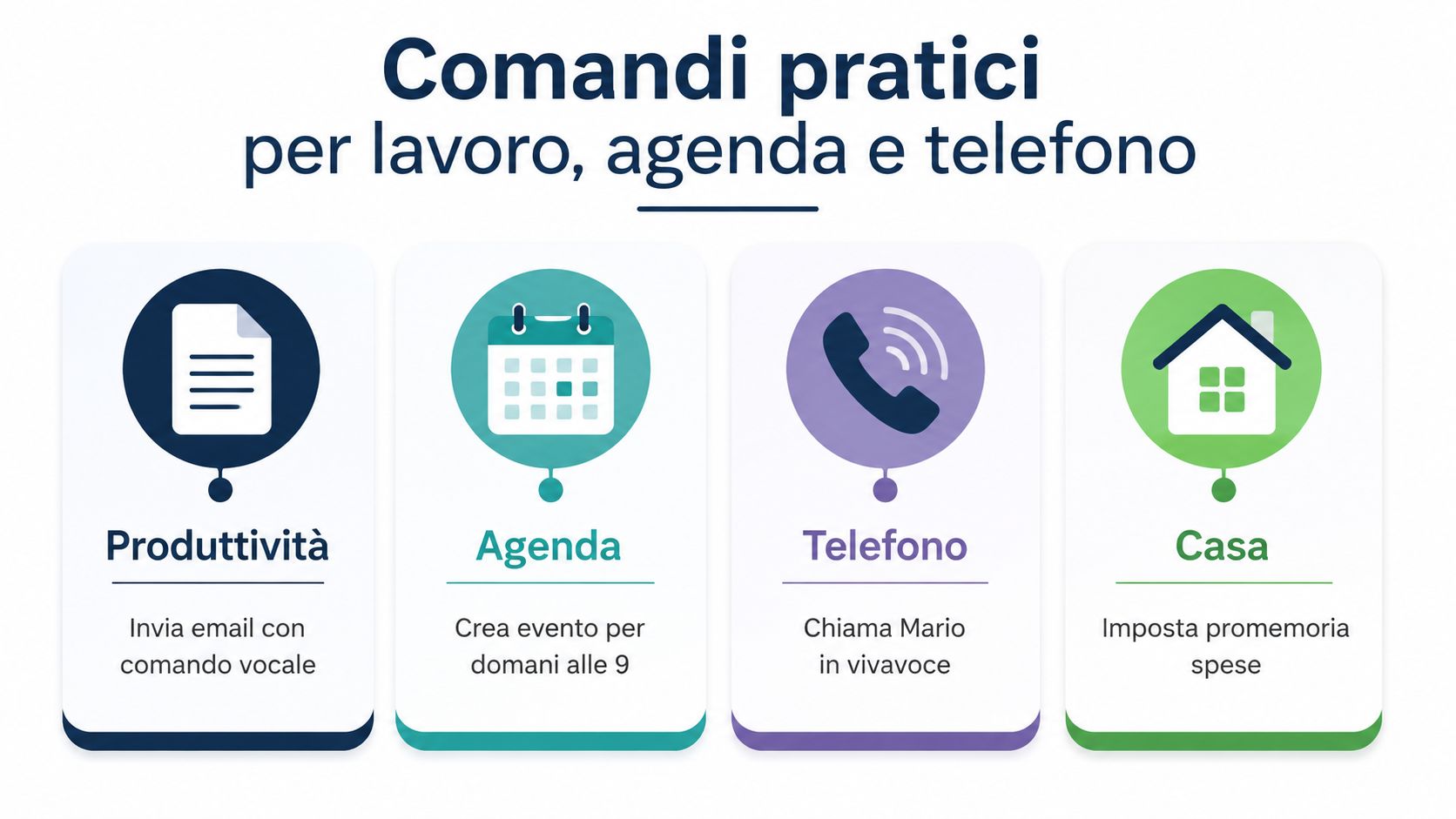
The most useful part comes when you stop thinking about the function and start thinking about the result. Voice commands on Android are designed to eliminate small annoyances—the ones that waste your time without you even realizing it. The great thing is that many actions are already supported by the Google Assistant app and don’t require complex automations. Google Assistant on Google Play.
Productivity. Use your voice for alarms, timers, reminders, and appointments. A phrase like “Set an alarm for 7” or “Remind me about the call at 3” is faster than opening multiple screens. You’ll really notice the difference when you’re on the go or switching between contacts.
Communication. You can dictate messages, make calls, and initiate communications without having to dig through your contacts list. Phrases like “Send a message to Marco saying I’ll be there in ten minutes” or “Call the office on speakerphone” are perfect when you have your phone in your hand but don’t want to stop what you’re doing.
Phone. Assistant can change settings that many users overlook, such as Do Not Disturb, Bluetooth, Airplane Mode, and the flashlight. Just say “Turn on Do Not Disturb” or “Turn on the flashlight” to skip unnecessary steps.
Smart home. If you have compatible lights, thermostats, or outlets, you can control them with your voice. This is also useful for people who work from home, because it integrates your phone into a broader workflow—not just a personal one.
On Android, voice commands that use deep links follow a specific technical pipeline. The Assistant analyzes the request, matches it to a pre-registered intent, and then generates an Android intent to the in-app destination using the capability metadata from the Android documentation on the Assistant. In practice, a phrase only works if the app has been designed to understand it.
This is the key point for SMEs. Some work apps can be opened or trigger actions using voice commands, but only if voice support has been built in from the start. If a workflow isn’t integrated, voice remains a general shortcut—not a magic door.
Routines are what take everyday use to the next level. With a single command, your phone can trigger a sequence of actions for you. For those who frequently move between the office, home, and appointments—or who run a small business—this turns your voice into a small workflow, as useful as a well-designed shortcut.
The logic is straightforward. Start with a trigger phrase, add the actions, and, if needed, link everything to a time, a location, or an alarm. To learn how to set up Assistant recognition and usage in Italian, you can start with Voice Match on Android in Italian, then apply the same logic to your routines.
To create a routine in the Google app, go to Settings, then to the Routines section. From there, you can choose to trigger it manually or based on an event, and add multiple actions in sequence. After saving it, it’s a good idea to test it right away. That way, you can spot any vague phrasing or actions that don’t work on the first try.
Routines work best when the initial command is short and the actions are few but clear.
Morning Routine. Your phone reads your top notifications, starts a background playlist, and opens your calendar. It’s perfect for anyone who walks into the office, gets in the car, or opens their laptop and wants to get up to speed in just a few seconds, without having to switch between apps.
Office Closing Routine. The Assistant activates "Do Not Disturb," sends a predefined message to the team, and opens the daily task sheet. This step isn't just about saving time. It also helps standardize an internal process, which is useful in an SME where the nature of the work often changes but should remain organized.
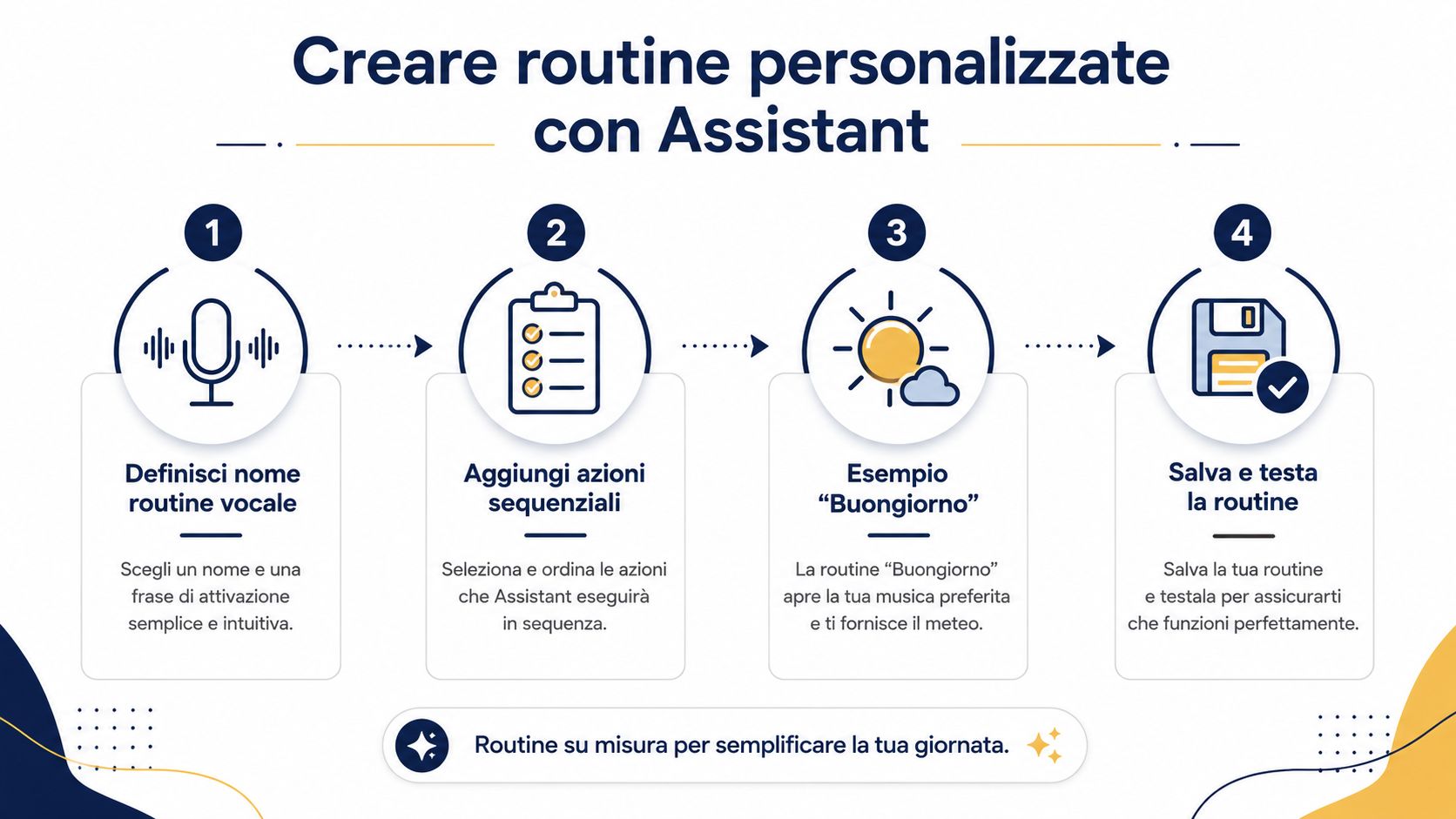
Use simple statements. Avoid names that are too similar to each other, and don't cram too many actions into a single command. If a routine fails, the problem is usually in the opening statement or in an action that requires permissions that haven't been granted. Before changing everything, try simplifying the first command or removing one step at a time.
For those who use Android as a work tool, routines are where voice commands and processes come together. They’re not just a novelty—they become a habit that helps you start and end your day with less hassle. If you’d like to explore how these workflows also relate to data management, you can learn how to manage data portability.
You're on the phone, so it's natural to have doubts. If the microphone is involved, it's only natural to wonder what's being recorded and where it ends up. Google explains that when you use "Hey Google," the audio clip of your request, the text transcript, and related metadata may be stored, so it's a good idea to carefully review the service's settings.
From your Google account, you can open "My Activity" and delete recent voice recordings. You can also set up automatic deletion after 3 or 18 months, so you don't have to do it manually each time. Voice Match remains the voice model used to recognize you, while commands are processed in the cloud when the system interprets your request.
For an Italian SME, the practical point is this: Voice commands can become a handy tool, like a simple dashboard that logs requests and helps keep repetitive tasks organized. For this very reason, anyone who uses Android at the office or on the go should decide in advance how much convenience they want and how much exposure they’re willing to accept.
If you want to reduce your exposure, turn off "Hey Google " when you don't need it—for example, at night—and use the physical button when you prefer to make a deliberate call. It's a more understated option and is often more appropriate in professional or shared settings.
A sensible choice: Use voice activation when it saves you time, and use the button when you want to minimize the number of permanent triggers.
For the Italian public, the European data protection framework remains the standard. There’s no need to delve into legal technicalities to understand the practical rule—just remember that you have tools to control, delete, and restrict what your phone stores. If you’re interested in the topic of data management and circulation, you can also read about how to manage data portability.
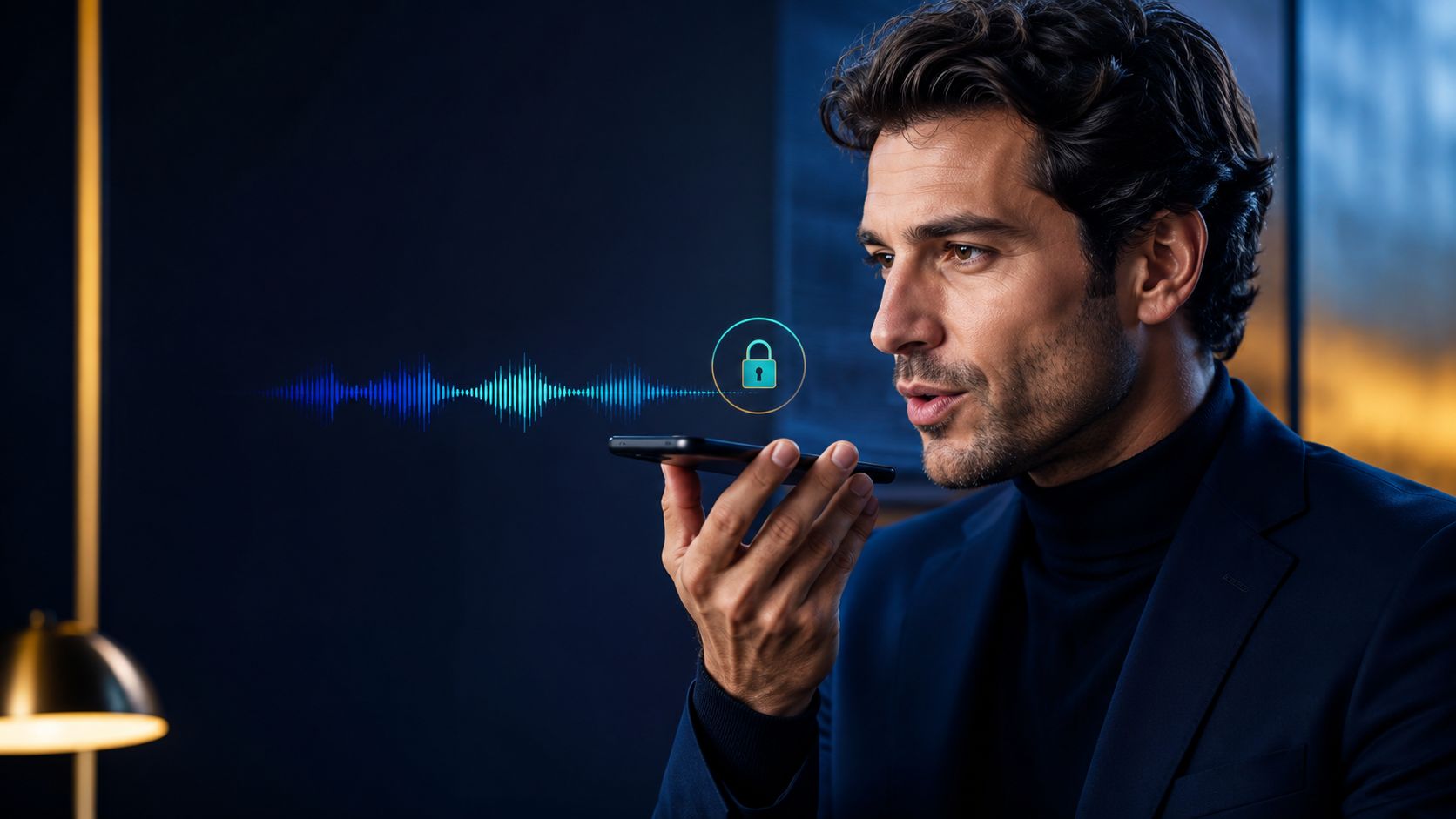
In practice, you don't manage your privacy by avoiding everything. You manage it by knowing what's active, what's being saved, and when it's best to turn off voice activation.
A voice command that doesn't work usually indicates a simple issue, not a phone malfunction. The same thing often happens in the office: incorrect language, missing permissions, a muted microphone, or a voice model that needs recalibration. If Voice Access isn’t responding, first check the accessibility permissions and then the microphone. If Assistant opens the wrong app, the command is often too generic, or that app doesn’t support the requested action.
For an SME, these checks aren’t just about “keeping the phone working.” They’re about making the phone a reliable hub for quick tasks, your calendar, messages, and work tools. It’s a bit like fixing the keyboard in a shared office—if the keys don’t respond well, every keystroke slows down the workflow.
When the phone is set up properly, voice commands become the first layer of operation. They help you make requests, open apps, dictate notes, and move more quickly through repetitive steps. When that information needs to be turned into insights that benefit the company, you need a different tool—one capable of analyzing the data, not just following instructions.
ELECTE, an AI-powered data analytics platform for SMEs, automates reporting, insights, and pattern recognition from business data. This approach complements mobile work well because it links day-to-day operations to an understanding of what’s actually happening within processes. If you want to see how workflows can be turned into useful data, you can also learn more about turning calls into data with ELECTE.
Setting up voice commands properly on Android isn’t just about saving a few taps on the screen. For those who run an SME, it can be the easiest way to keep track of quick tasks, work notes, and alerts that need to be reviewed more carefully later. If you want to turn this efficiency into more informed decisions for your SME, visit ELECTE and discover how to transform alerts, tasks, and data into insights that are useful for your daily work.

.svg)


.svg)
.svg)