

Creating a shared calendar is a strategic move to centralize planning and optimize your team’s collaboration. This guide will show you how to set it up on major platforms, eliminating scheduling conflicts and boosting productivity. You’ll learn not only the technical steps but also strategies for turning a simple calendar into a real driver of growth for your business.
A shared calendar isn’t just a simple planner. It’s the beating heart of modern collaboration. Before diving into the technical details, it’s essential that you understand the real impact it can have on your team’s productivity. Managing complex projects without an overview is like leading a team blindfolded: time is wasted on unnecessary emails, frustrating overlaps occur, and there’s a lack of transparency regarding workloads.
Adopting a shared calendar addresses these issues at their root, yielding tangible benefits.

Imagine your marketing team coordinating the launch of a new product. With a shared calendar, deadlines for content creation, social media posting dates, and promotional events are all clearly visible to everyone. Every team member knows exactly what to do and when, ensuring perfect synchronization. To learn more about collaboration dynamics, you can read our article on the difference between synchronous and asynchronous work and how to best balance the two.
Similarly, a sales team can manage appointments, demos, and follow-ups without stepping on each other’s toes. If a sales representative schedules a call with a client, the entire team is aware of it. This not only prevents duplicate contact but also provides the client with a much smoother and more professional experience.
Adopting a shared calendar is the first step toward fostering a more agile and organized work culture. It’s not just about managing time, but about creating a common language that aligns everyone’s efforts toward a shared goal.
Google Calendar is often the first choice when a team needs a shared calendar. It’s accessible, intuitive, and most people know how to use it. But to turn it into a true command center for productivity, it’s not enough to simply create an event and invite your colleagues. You need to go a step further, starting by creating a calendar from scratch that’s designed for a specific purpose.
In the left-hand panel of Google Calendar, click the “+” sign next to “Other calendars” and select “Create new calendar.” It’s a simple step, but it’s the foundation for flawless organization. Imagine creating specific calendars like “Q3 Product Launch” or “Marketing Editorial Plan.” Just doing that makes everything more organized.
Once you've created the calendar, the real challenge lies in managing permissions. It's an aspect that many people underestimate, but it's crucial for security and efficiency. Google offers several levels of access, and choosing the right one makes all the difference.
Here is the main interface where you can manage all these settings. It's your command center.
This clear, uncluttered screen is where the organization really takes shape.
Assigning the right permissions isn't just a formality. It's a way to define roles and responsibilities. It helps prevent accidental changes and ensures that everyone has access to exactly the insights they need.
To really take your productivity to the next level, don’t limit yourself to a single generic calendar. Google Calendar’s true power shines through when you create multiple themed calendars. Imagine having separate calendars for:
The final touch? Assign a different color to each calendar. It’s a visual trick that transforms a cluttered planner into a true control panel, letting you spot your priorities at a glance.
For companies that have adopted the Microsoft ecosystem, creating a shared calendar becomes a true operational hub, deeply integrated with tools you likely already use every day, such as Teams, SharePoint, and Planner.
The smartest approach? Take advantage of Microsoft 365 Groups. Creating a calendar through a Group doesn’t just mean sharing appointments—it also centralizes files, conversations, and tasks. This breaks down silos and ensures that every team member has a single, consistent view, without having to jump from one platform to another.
If there’s one tool that can literally save you hours of work, it’sthe OutlookScheduling Assistant. How many times have you wasted time in endless email exchanges just to find an open slot for a meeting?
Forget about it. This tool analyzes all participants’ calendars in real time, visually shows you their availability, and suggests the best times. It’s one of those features that, once you discover it, radically changes the way you work, making meeting planning more efficient.
The true power of a shared calendar in Microsoft 365 becomes apparent when you apply it to your day-to-day operations. The possibilities are perfectly tailored to the specific needs of each team.
Imagine these scenarios:
The image below shows a simple decision tree for managing permissions. This principle also applies perfectly to the Microsoft ecosystem.
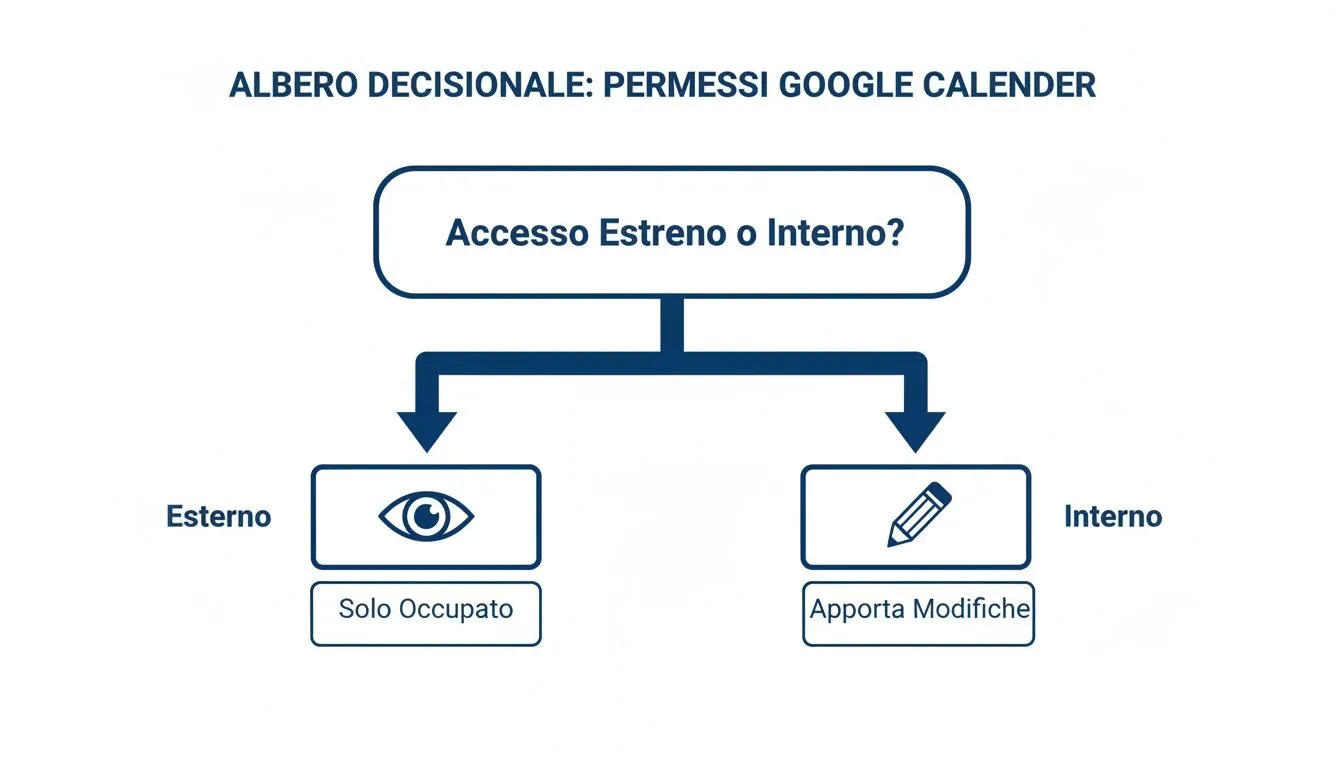
This distinction is crucial: you can grant an external partner access without revealing the details, while still allowing your team to operate fully.
Leveraging the native integration between Outlook, Teams, and SharePoint transforms the calendar from a simple scheduling tool into a collaborative command center. Each meeting becomes a hub for related documents, chats, and tasks.
The integration doesn't stop there. For example, files attached to a meeting invitation are automatically saved to SharePoint and remain accessible within Teams. If you'd like to learn more about optimizing document management, our guide to OneDrive for Business offers practical tips for maximizing efficiency.
Creating a shared calendar is just the first step. Its true value becomes apparent when every update is instantaneous and visible to everyone, especially in a hybrid work environment. A calendar that doesn’t sync is simply useless.
For this reason, it’s essential that shared calendars in Google Calendar and Outlook work seamlessly on native mobile apps. Typically, once you’ve added your Google or Microsoft 365 account to your smartphone, your calendars will sync automatically. If they don’t, check your account settings on your device and make sure that syncing for the Calendar app is enabled.

Technology alone isn't enough. Without clear protocols, even the most sophisticated tool will only create chaos. To turn your calendar into a reliable source of truth, you need to establish "golden rules" that the whole team agrees on.
A well-managed calendar is not just a planner, but a powerful tool for asynchronous communication. Every event, status, and update clearly communicates the progress of work and people’s availability.
Adopting these simple protocols requires a bit of discipline at first, but the benefits are enormous: fewer interruptions, fewer unnecessary questions, and a company culture based on respect for others’ time. This is how creating a shared calendar transforms from a simple technical task into a true strategic asset for your team.
Your calendar can do much more than just track appointments. Once you’ve gotten the hang of the basic features, it’s time to take it to the next level: turn it into a strategic tool for business management—a true command center that guides your decisions and streamlines processes.
Think of the calendar not as a list of tasks, but as a visual roadmap for the entire team.
Use a shared calendar to track the key milestones of your projects. Instead of hiding them in a spreadsheet that no one looks at, make them visible to everyone, every day.
This approach turns abstract deadlines into concrete goals. Everyone on the team can see where you stand and understand how their work fits into the bigger picture, which increases their sense of responsibility.
For those working in marketing and communications, a shared calendar is the backbone of their strategy. You can create an editorial calendar that coordinates the entire workflow, from the first draft to publication.
Assign a different color to each phase or channel to keep everything under control:
This type of visual organization eliminates chaos and ensures consistent communication. This approach is essential for long-term planning, much like how large institutions analyze employment trends. For example, you can learn more about this data on the Unioncamere website to anticipate future market needs.
The real magic happens when you connect your calendar to the other tools you use every day. That’s when creating a shared calendar becomes a driver of automation.
Consider integrating with project management platforms like Asana or Trello. You can automatically sync task deadlines with the team calendar. That way, when a due date is updated, the corresponding event in the calendar updates automatically.
Automation transforms your calendar from a passive tool into a proactive assistant. It doesn't just record what happens; it helps you make things happen as efficiently as possible.
To take things to the next level, tools like Zapier let you create automations that connect your favorite apps. For example, you could set up a rule so that a new qualified lead in your CRM automatically triggers a follow-up event in the sales team’s calendar. This eliminates manual steps and reduces the risk of oversights. Learn more about how to integrate ELECTE hundreds of apps via Zapier and discover the hidden potential of automation.
Even with the best planning, technology can sometimes cause a few hiccups. An event that doesn’t show up on a colleague’s smartphone or a missing edit permission are minor issues that can be frustrating. The good news is that, in most cases, the solution is simpler than you might think.
A lack of synchronization can lead to missed meetings and missed deadlines. That’s why it’s essential that you know how to spot and resolve these issues on the spot. Let’s take a look at how to handle the most common ones.
This is the number one problem. A colleague adds an appointment on their computer, but it doesn't show up on another team member's phone. Usually, this is due to a simple synchronization delay or a "sleep" setting on the mobile app.
How to fix it in just a few steps:
Another classic scenario. A team member tries to reschedule a meeting, but a message alerts them that they don't have the necessary permissions. This happens when the calendar has been shared with the wrong access level, such as "Can view only" instead of "Can make changes."
The solution here is centralized. The person who created the calendar (or an administrator) needs to take action. Simply go to the sharing settings and increase the permission level for that person or for the entire group.
Receiving two notifications for the same event is almost more annoying than not receiving any at all. This confusion arises when multiple calendar apps linked to the same account are installed on the same phone.
The solution is to streamline things: choose a single app as your go-to source for scheduling and turn off notifications for all the others. Putting these simple tips into practice ensures that your shared calendar setup becomes a reliable and seamless tool for your work.
Here are the key points you need to keep in mind to make creating a shared calendar a success for your team:
By adopting these principles, you’ll transform your calendar from a simple planning tool into a powerful ally for your business’s productivity and growth.
Ready to take your planning to the next level? ELECTE turns your team’s data into strategic insights. Discover how ELECTE help you make better decisions.

.svg)


.svg)
.svg)