

SME finance teams know this all too well: every time you try to import a PDF into Excel, it’s a battle with formatting. The classic copy-and-paste almost always turns into a disaster: scattered data, randomly merged cells, and neatly organized tables that turn into unreadable chaos. The frustration is real, but it’s not your fault. The problem lies in the very nature of the PDF format, which is designed for printing and sharing, not as a source of data to be analyzed.
This manual workflow—involving bank statements, supplier invoices, and government agency documents—is a real productivity black hole. Not only is it tedious, but it’s also a near-certain source of data entry errors. Fortunately, in 2026, you have much smarter methods at your disposal to overcome this challenge. In this guide, we’ll walk you through the most effective strategies step by step—from those built into Excel to AI-powered solutions that completely eliminate manual work, allowing you to go from data extraction to analysis in just a few minutes.
The problem stems from a fundamental distinction: PDFs were created to preserve a document’s appearance on any device, not to maintain the logical structure of the data within it. Understanding the difference between the types of PDFs is the first step toward choosing the right tool and avoiding hours of wasted effort.
This image perfectly captures the frustration of anyone who has to juggle a complex PDF and a messy spreadsheet.

This is exactly when a manual process becomes a barrier to productivity, highlighting the need for a more efficient way to import a PDF into Excel.
You may not know this, but the easiest way to import a PDF into Excel is already built into the software you use every day. It’s called Power Query, a powerful “Get & Transform Data” feature that Microsoft has included in Excel.

It’s the perfect solution for occasionally importing simple, well-structured PDFs, such as a price list or a contact list. Its biggest advantage? It’s free and requires no additional installation.
The data will be entered into a new worksheet, already formatted as an Excel table, ready to use.
Power Query is great, but it has its limitations. It works best with simple tables that fit on a single page. Its performance suffers in more complex scenarios:
If you frequently work with data analysis, you might be interested in exploring integrations with Power BI, which uses the same technology. Similarly, knowing how to handle other file formats is essential; our guide on how to work with CSV files in Excel can provide some useful tips.
If your company already has an Adobe Acrobat Pro license, its export feature is one of the most reliable solutions available. It often outperforms Power Query when it comes to preserving the formatting of complex tables with unconventional layouts.
The process is simple: open the PDF, go to All Tools, select Export PDF, set the format to "Spreadsheet," and save your new Excel file.
The result is almost always clean and tidy. However, there are two main drawbacks:
Tools like iLovePDF, Smallpdf, or the open-source Tabula are incredibly convenient: just drag and drop the file, click a button, and download the result. They’re a good option for occasional conversions of non-sensitive data.
However, this convenience hides a huge risk: data security.
Uploading a document to a third-party server effectively means losing control over it. If that PDF contains bank statements, customer data, confidential price lists, or any other strategic information, you are exposing your company to potential privacy breaches and serious GDPR compliance risks.
For SMEs operating in Europe, this is no small matter. Using an online converter to analyze a public Istat report is acceptable. Doing so with your company’s financial data, however, is a risky move that you need to consider carefully.
If your team has to handle dozens of bank statements, invoices, or reports that arrive every month in the same format, manually extracting the data is more than just a hassle—it’s an operational bottleneck.
For SMEs that process large volumes of standardized documents, automation using Python scripts is not a luxury, but a strategic investment in efficiency. Of course, it requires technical expertise, but the return on investment is enormous in terms of time saved and errors eliminated.

Python reigns supreme in this field thanks to free and extremely powerful libraries such as pdfplumber and Camelot, designed specifically to recognize and reconstruct the structure of tables embedded in PDFs.
pdfplumber: Extremely versatile, it is excellent for extracting tables, text, and metadata by analyzing the position of every single character.Camelot: Specializing in table extraction, it offers advanced algorithms for handling tables with and without visible separator lines.Real-world scenario: Imagine receiving 50 invoices from a supplier at the end of the month. Instead of tying up a resource for hours, a Python script can scan them, extract totals and dates, and generate an Excel file ready for analysis. All in less than a minute and with zero risk of human error.
Once extracted and organized, this data can be sent to analytics platforms. To learn more about how to integrate this data into broader workflows, find out how ELECTE APIs work to automate data transmission to our platform.
When traditional methods fail, artificial intelligence steps in. AI-powered platforms like ELECTE changing the game, especially when it comes to scanned documents or those with complex layouts.
We’re not talking about the old OCR, which simply “read” text. Modern solutions combine OCR with advanced language models (LLMs) to understand the structure, context, and relationships within the data.
Imagine a financial report with tables that span multiple pages. An AI-powered platform can:
This changes everything. Instead of extracting raw data, the AI platform “processes” the PDF and returns it as a clean dataset ready for analysis. If you’d like to learn more, we covered this in our article on the best AI solutions for businesses.
The true value of AI isn't in extracting data, but in extracting ready-to-use insights. You don't just get a simple Excel file; you get data that your team can use immediately to make strategic decisions, without wasting time cleaning it up.
It’s interesting to note that Milan accounts for the largest share of Italian imports. But being able to automatically generate a comprehensive report on importing provinces allows your team to do much more: compare trends, optimize inventory, and reduce costs.
With so many options, how do you choose the right one for you? The answer depends on four key factors that determine the efficiency, safety, and cost of your operation.
This decision tree helps you visualize the logical path to your decision.
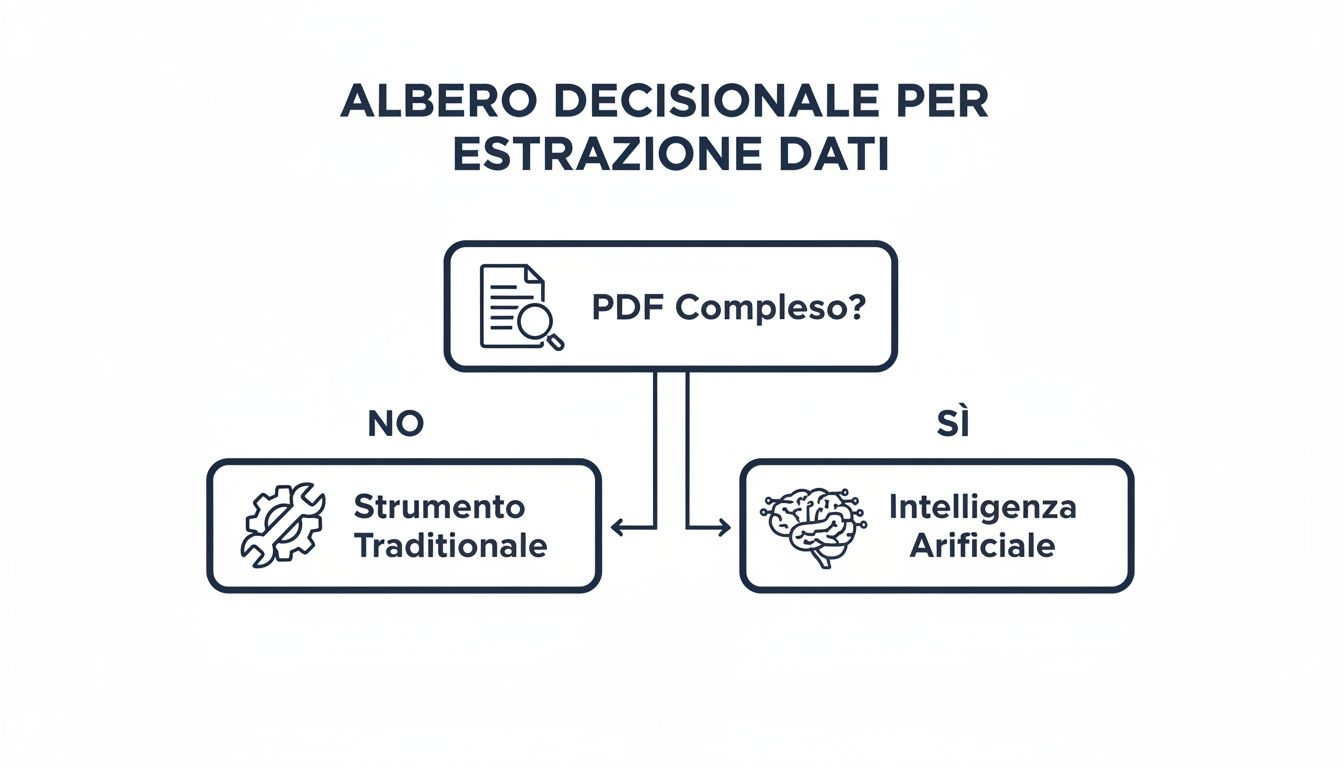
The concept is simple: for basic PDFs and occasional tasks, traditional tools like Power Query are ideal. For high volumes, complex documents, and recurring workflows, an AI-powered platform like ELECTE a tedious task into an automated process that generates value.
Importing a PDF into Excel no longer has to be a manual and frustrating process. Today, you have a wide range of tools at your disposal, from free, built-in options like Power Query to advanced automation solutions and AI-powered platforms.
The choice depends on your specific needs: for occasional tasks involving simple files, Power Query is unbeatable. When it comes to managing recurring volumes of complex and sensitive documents, automation and artificial intelligence are no longer a luxury, but a strategic necessity. By eliminating manual data extraction, you not only save time and reduce errors, but you also free up your most valuable resources to focus on what really matters: analyzing data to drive smarter, faster business decisions. That’s how you turn a simple document into a source of competitive advantage.
Ready to say goodbye to copy-and-paste for good? Discover how ELECTE speed up your decision-making by turning your most complex PDFs into actionable insights.

.svg)


.svg)
.svg)