
Are you looking for a quick reminder that won’t get buried under open windows, emails, and meetings—and that doesn’t force you to open a resource-intensive program every time? In small teams, this happens all the time: an important note ends up on a physical piece of paper, then gets moved to the desk, and then gets lost. A Post-it note on your desktop solves exactly that blind spot, because it puts the information you need right in front of your eyes, without interrupting your work.
On Windows and macOS, the concept has changed over the years; it’s no longer a virtual sticky note placed randomly on the screen, but a native digital note integrated into the operating system. On Windows, you can open Sticky Notes/Memo from the Start menu, or launch it with Win+Alt+S (as mentioned in some Italian guides), while on Mac, the Memo/Stickies app is already installed and the notes are visible on the desktop. Even on the iPhone and iPad, quick notes become part of your daily workflow through widgets, so the question is no longer “where do I save the note,” but “how do I make it truly useful without creating clutter.” Free Post-it notes on your desktop
Here’s a common scenario: You have three apps open, a busy day ahead, and a yellow sticky note that says “call the supplier”—which ends up under your keyboard or behind your phone. With a digital Post-it note on your desktop, that reminder stays right in front of you while you work, without forcing you to shift your attention or switch windows.
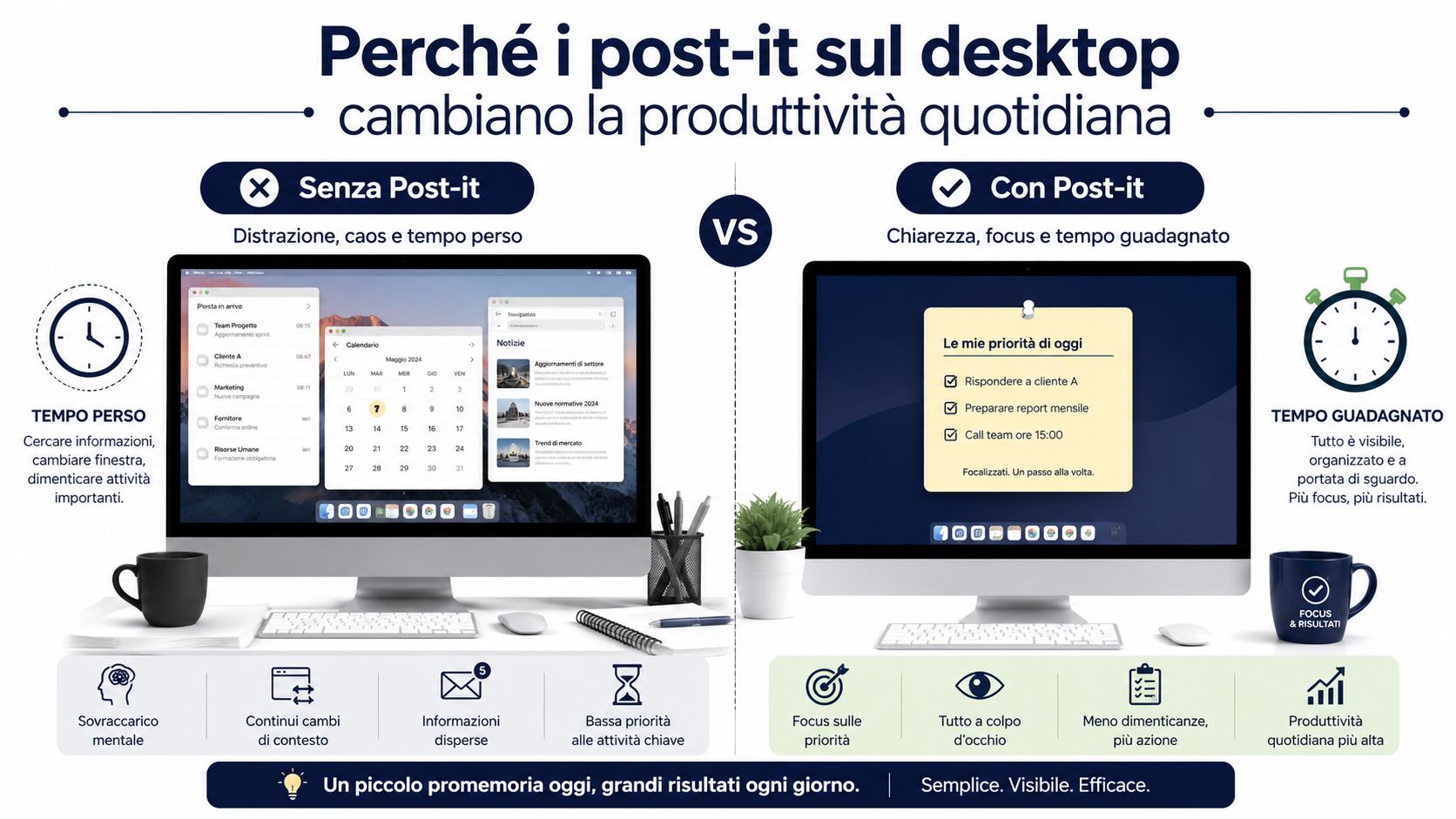
In day-to-day work, the Post-it note on your desktop is useful for quick reminders, follow-ups, and decisions that can’t get lost among emails and chats. It’s not a tool for managing long-term projects, but it works well when you need to keep track of a quick task, a call to make, or a decision to confirm. If you’re looking for a more comprehensive way to organize your day, it’s worth checking out the best apps for daily planning as well, because the digital sticky note is meant for immediate reminders, not for managing your entire workflow.
Rule of thumb: If you need the information today and will read it over several times, a note on your desktop makes sense. If it needs to remain relevant for weeks or involves multiple people, a shared feed is better.
The trade-off is clear. Too many open notes turn the screen into visual clutter, and at that point, the reminder loses its usefulness. The most helpful Italian guides emphasize simplicity, readability, and organization, because a note only really works if it remains clear without obscuring the rest of the work on copertura5g.it.
In a small team, the real advantage is that the same information remains accessible as you switch between email, chat, and the calendar. A physical note is still handy for a quick reminder on your screen, but it doesn’t sync, it gets damaged, and it doesn’t follow you when you switch devices. A digital note becomes part of the system’s normal workflows and, for repeated use, is better suited to maintaining order without adding unnecessary steps— Aranzulla.
| Criterion | Digital Post-it Note | Physical Post-it Note |
|---|---|---|
| Visibility | Always on the screen, if left open | Always visible only if properly attached |
| Update | Quick, can be modified in just a few seconds | Manual—needs to be rewritten |
| Continuity | It can track accounts and devices | Stay on the screen |
| Visual Cleanup | More manageable when used with discipline | More immediate, but often more chaotic |
In a small office, the digital sticky note is often the fastest way to keep track of a delivery, a phone call to make, or a task to complete. The mistake is treating it as mere decoration. When used as a micro-workflow, it becomes a reliable external memory for short notes, quick decisions, and reminders that need to stay visible until the end of the day.
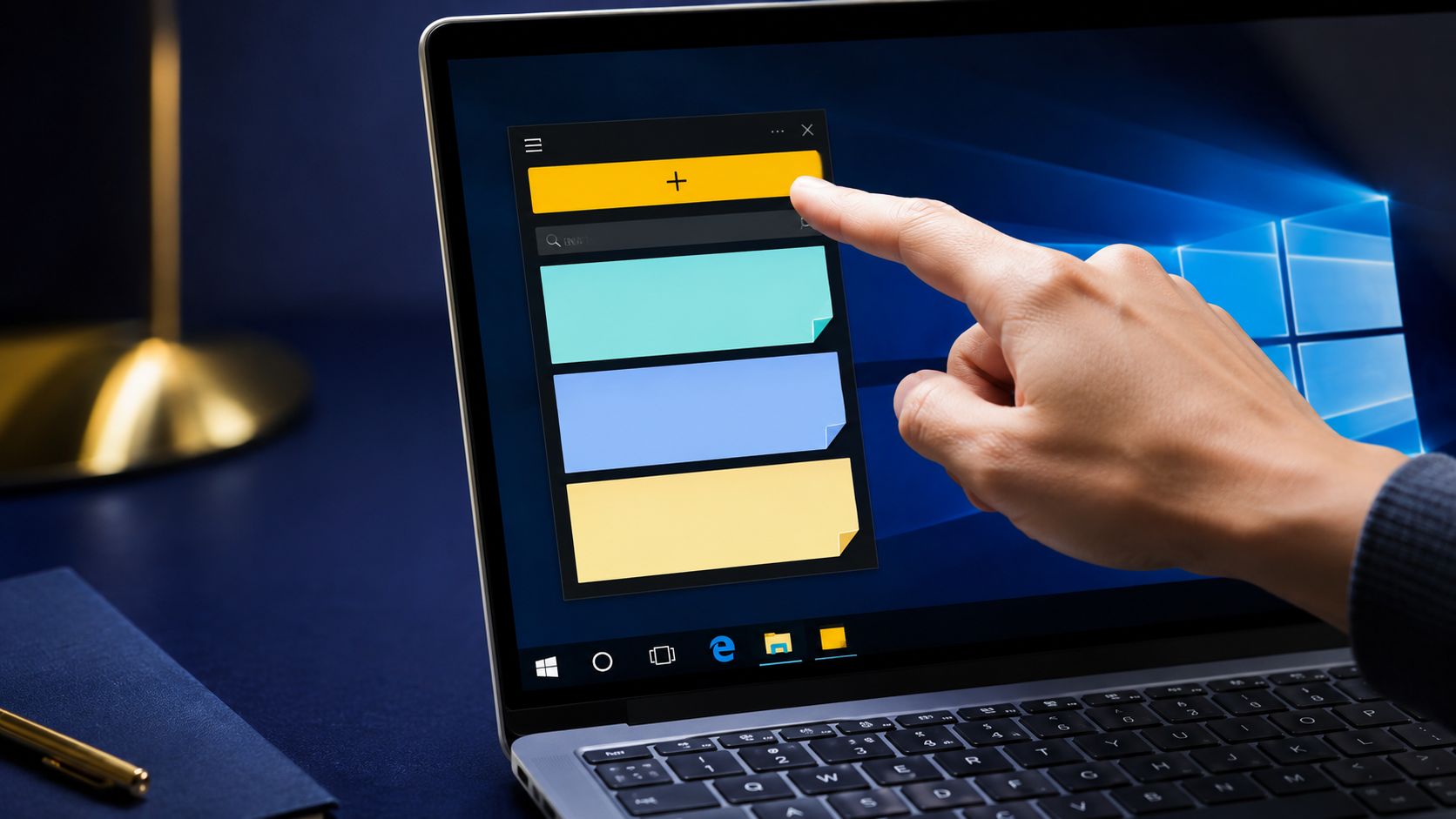
On Windows 10 and Windows 11, the quickest way is to use Sticky Notes, which is already built into the system. Open the Start menu, search for " Sticky Notes," and launch the app. Some Italian guides also list Win+Alt+S as a shortcut to open it directly—a handy feature when you need to jot something down while you’re already working on Libero Tecnologia.
Once you open the app, tap + New Note. From there, you can write your content and format the text using basic tools like bold, italics, underline, and lists, so you’re not limited to a plain line of text like iTop VPN. You can change the note’s color, which helps you distinguish between what’s urgent and what’s just something to remember.
In practice, the workflow is as follows.
Practical tip: Use color by category, not based on personal preference. If you choose a consistent color code, the note stops being visually chaotic and becomes a quick visual cue.
Many people think that the Post-it note is a standalone desktop widget. In reality, it originates from the Sticky Notes app, so it must be created and managed from there. This detail matters when you need to find a note, switch accounts, or reinstall the program, because its behavior depends on the app and not on a simple, isolated graphical element supported by Microsoft.
On Windows, the built-in solution is sufficient in most cases. Free alternatives like PNotes, Stickies, and Simple Sticky Notes become worth considering only when you need more customization, a lighter app, or more flexible note management. Libero Tecnologia.
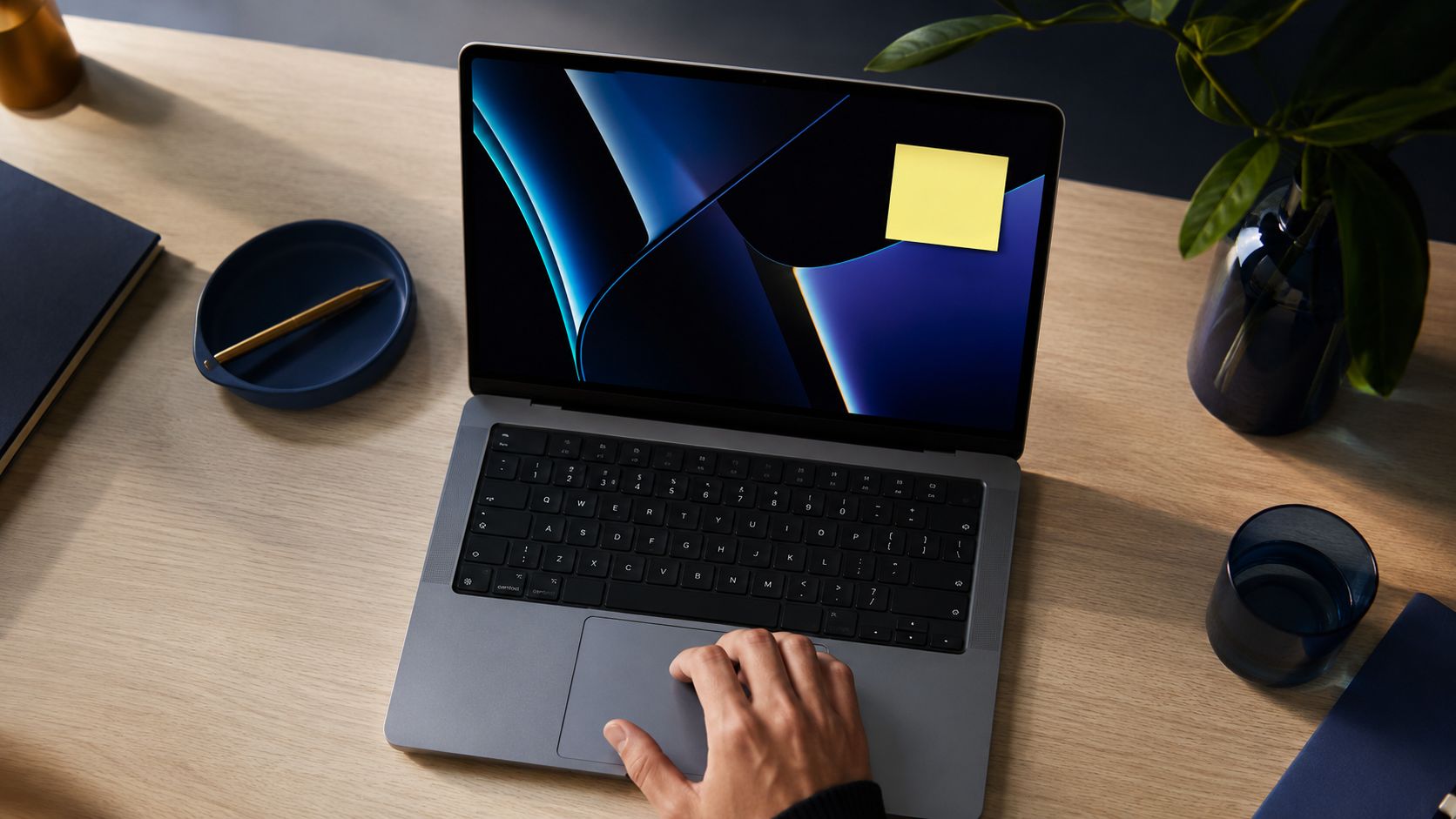
On a Mac, the process is just as straightforward. The Stickies/Memo app is already installed; you can open it from Applications, or using Spotlight or Launchpad. Once created, the note will remain on the desktop as long as the app is running, and you can move it freely around the GialloNote screen.
For most users, the native app is the right choice. It’s already there, requires no installation, and saves you from having to manage yet another tool. However, when you start managing a large number of notes, different colors, priorities, and more controlled visibility, it makes sense to look into solutions like PNotes or Simple Sticky Notes, which are recommended in some Italian guides—such as those on Windows Libero Tecnologia—specifically for those seeking more customization.
Don't choose based on trends; choose based on your workload. If all you need is a visible reminder for a meeting or a follow-up, the native app is cleaner and faster. If, on the other hand, you need to keep many small tasks open—perhaps with different colors and sizes—an alternative solution can make your desktop more manageable.
| Use Cases | Native app | Free alternative |
|---|---|---|
| A single note or a few notes | Ideal | Often unnecessary |
| Extreme Customization | Essential, but limited | More suitable |
| Lightness and Speed | Very good | It depends on the instrument |
| Cross-Platform Management | System-specific | More flexible, depending on the app |
On the iPad and iPhone, notes can be added as widgets to the Home screen, so the concept of a quick reminder isn’t limited to the Aranzulla desktop alone. For those who split their time between the office and business trips, this is often a game-changer, because the reminder isn’t confined to a single screen.
The real leap forward comes when you create a note on one device and find it on another without having to copy it manually. On Windows, Sticky Notes are syncedthrough your Microsoft account, and according to the Italian documentation, the notes can reappear even after a reinstallation if you were already signed in beforehand, according to Microsoft support. On Mac, the equivalent process revolves around iCloud, with Memo and Notes sharing content.
The process is simple. Create the note on your computer, sign in with the same account on the second device, and make sure synchronization is enabled. That way, a follow-up note you wrote during a call on your laptop will reappear when you return to your desk, or you’ll find it on your phone while you’re out of the office.
For those who often work in a browser, extensions can be useful for jotting down an idea directly from a web page. A solution like Google Keep for Chrome or similar tools lets you save your thoughts on the fly and find them again later in your daily workflow. The point isn’t to accumulate channels, but to avoid rewriting the same note twice.
Synchronization is necessary when a note is living information, not a static reminder.
For a small group, this approach is especially helpful for quick tasks, such as a client request, a correction that needs to be made, or a reminder about a deadline. If the content needs to be shared and coordinated, however, a sticky note alone isn’t enough—it needs to be supplemented with more structured tools, such as team planning strategies that you can set up in a shared calendar.
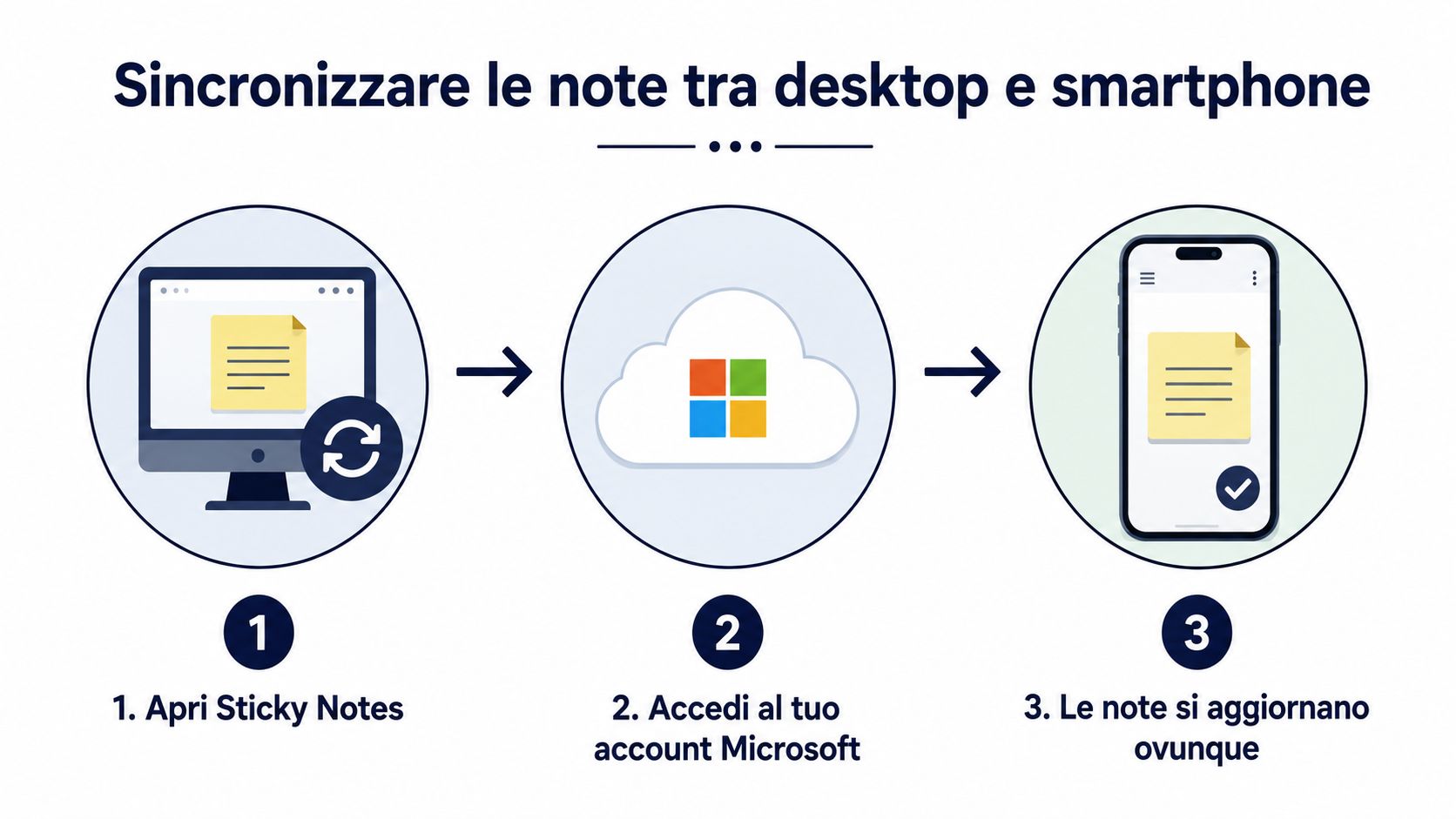
Quick note-taking, automatic sync, and instant retrieval work well. Using Post-its as a long-term archive and then expecting them to stay organized on their own doesn't work quite as well. Synchronization solves the access issue, but it doesn't replace the method itself.
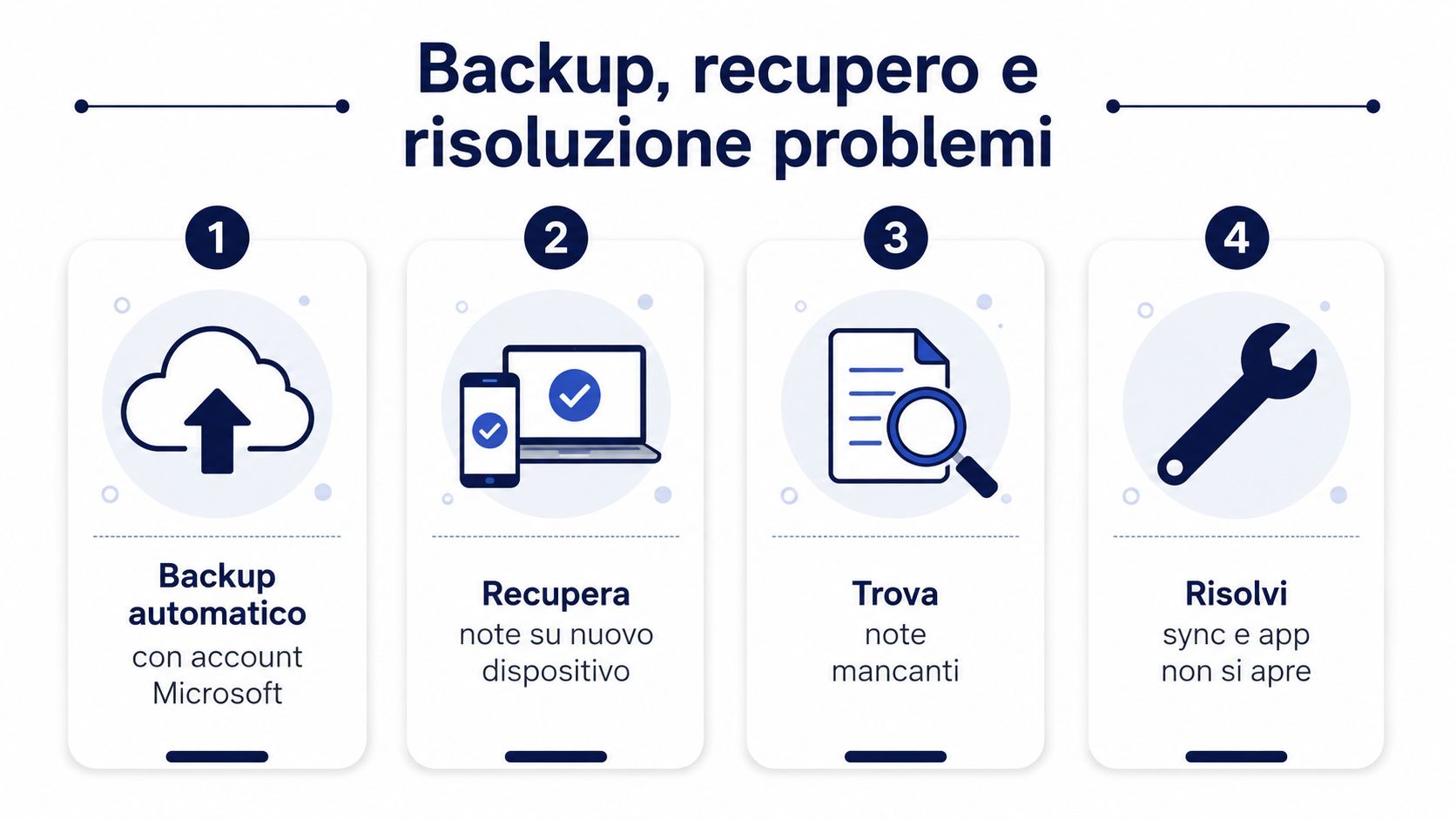
The most frustrating problem isn’t creating a note—it’s opening the app and not being able to find it anymore. In those cases, the priority is to figure out whether the note has truly disappeared or if it’s just hidden, synced incorrectly, or opened with a different account. The Microsoft documentation in Italian provides specific steps for finding “missing” notes through the notes list, signing in, and restarting the app, and notes that notes may reappear after reinstallation if you were already signed in, according to Microsoft Support.
Always start by checking your account. If you use multiple profiles on the same PC, make sure you've opened Sticky Notes with the correct one. Then check the list of notes and restart the app, because many instances of notes disappearing are due to an incomplete load or a synchronization that got stuck.
For truly important content, manual backups are still a good habit to maintain. Copy and paste the text into a secure document, or take a screenshot if you need to preserve the visual context as well. It’s not the most elegant solution, but it’s reliable when you want a copy that’s independent of the cloud.
Minimal maintenance: correct account, notes checked, quick restart, copy of critical notes.
If the note doesn't stay in the foreground, the problem is often related to the app's window or notifications, not the content itself. In these cases, it's a good idea to check whether the note has been minimized, moved off-screen, or opened in a way that differs from what you expected. On a Mac, the same basic logic applies, but you'll need to check the account and the app's lifecycle.
For those who want to take a broader view of business continuity and the preservation of work files, it’s worth distinguishing between a sticky note and a storage container. The role of OneDrive for Business becomes relevant when a note evolves into a document or file that needs to remain retrievable over time in OneDrive for Business.
The most useful rule isn't about aesthetics—it's about functionality. Keep only a few notes visible, assign colors consistently, and use transparency judiciously, so the content remains readable without obscuring what you're doing. If you have too many notes open, your desktop stops being a tool and becomes a constant distraction.
When used properly, a digital sticky note functions as a personal micro-database. The note serves as a place to jot down the day’s reminders, follow-ups from meetings, and tasks to check off before ending the session. When used improperly, it becomes nothing more than a list of unfinished business.
The best routine is simple. At the end of the day, close what’s already been done, save what needs to stay, and delete the rest. This evening cleanup prevents your desktop from filling up with outdated content and forces you to use the notes feature for what it’s really meant to be: a temporary storage space.
Here's a rule I often use with small teams: if a note no longer has a clear action associated with it, it shouldn't remain visible.
Physical Post-it notes are still useful for one-time reminders, especially when you want an immediate visual cue on your monitor and don’t need synchronization. They’re less durable over time, but they still offer a practical advantage: the tactile nature and immediacy of an object you can see and touch right away. For anything that needs to be tracked in your account, however, the digital format is more reliable.
If you work remotely or juggle multiple tasks at once, the rule is clear. Physical notes are fine for short, local messages; digital notes are best for anything that needs to survive a closed window, a device switch, or a day full of interruptions. If you want to turn your reminders into more organized decisions and truly readable workflows, try ELECTE and discover how it can help you bring clarity to your data and daily tasks.

.svg)


.svg)
.svg)