

It’s happened to you before. You receive an XML file from an ERP system, an e-commerce feed, a banking system, or an internal API. You know it contains orders, product lines, transactions, master data, or useful events. You open the file and see nothing but tags, nodes, and attributes. At that point, the problem isn’t the data. It’s the format.
For many companies, converting XML to Excel is the step that separates technical data exchange from operational analysis. In Italy, this is a very real issue: 68% of Italian IT companies use XML for data exchange, but only 42% convert it to Excel for analysis, resulting in a 26% efficiency gap (conversiontools.io). This gap translates to slower reporting, more manual work, and less time to analyze the numbers that matter.
Excel remains the go-to tool for many teams. Finance teams use it for auditing, retail teams use it to reconcile catalogs and orders, and analysts use it to clean, filter, and create quick reports. The point isn’t just about conversion. The point is to choose the right method based on the structure, volume, and frequency of the data flow. If you make the wrong choice, the data will still get in. But the process won’t scale.
An analyst receives an XML export from the order system. A finance manager downloads statements or transaction records in a structured format. An operations team exports data from an ERP system or API. They all start from the same situation: the data exists, but it is not yet in a format that the business can use.
XML is excellent for enabling systems to communicate with each other. It’s not the best format when you need to compare values, create pivot tables, check for anomalies, or build a forecast. That’s where Excel comes in. It’s familiar, quick to use, and, above all, it’s where many decision-making processes take shape.
The challenge lies in the fact that there is no single “right” way to convert XML to Excel. A simple file can be easily processed using Power Query. A hierarchical XML file often requires XSLT. Recurring and multi-file workloads tend to favor Python. For quick tasks, some teams also consider online converters, though these come with obvious trade-offs in terms of control and security.
The best choice depends on three practical factors: the complexity of the structure, the number of files, and the level of automation required. If you consider these factors before importing, you’ll save time right away and reduce errors later on, when the data starts to drive reports and decisions.
For most business teams, Power Query is the best place to start. It’s already built into Excel, requires no coding, and lets you convert XML into a table without leaving the environment you use every day.
The basic procedure is as follows:
On standard IT datasets, this approach has a 92% success rate, while 75% of errors stem from multiple namespaces—an issue that can often be resolved in the advanced options of Power Query (Beyond Japan).
If you frequently work with other spreadsheet formats as well, you may find this essential guide to managing CSV files in Excel helpful, since the process of cleaning, formatting, and finally importing the data is very similar.
Power Query works well when:
Practical tip: Rename the columns immediately after expanding the nodes. If you wait until the end, the risk of confusing fields with the same name increases significantly.
Power Query isn’t magic. If the XML is deeply nested, incremental expansion can result in duplicate tables, repeated rows, or unclear relationships between parent and child entities. It’s also common to see fields imported with the wrong data type, especially dates, Booleans, and currency values.
Two checks can prevent many problems:
For monthly reports, operational reconciliations, and ad-hoc analyses, Power Query is often the best choice. It quickly transforms raw data into a readable table. The business value is clear: less time spent on data preparation, more time spent analyzing the results.
If your goal is to deliver a quick report to decision-makers, this is almost always the method you should try first.
When Power Query imports a file but doesn't fully understand its structure, you need more precise control. XSLT addresses this need exactly. It doesn't try to guess what the final table should look like. You define it.
XSLT is particularly useful for hierarchical XML, non-standard structured feeds, and output layouts that must follow fixed rules. If the final Excel sheet needs to adhere to a specific corporate structure, this method is much more reliable than drag-and-drop.
This approach involves creating a stylesheet, for example using a template such as <xsl:template match='*'>, to generate an Excel XML worksheet. The success rate is 88% for validated XML files. The most common problems are clear: 60% of failures are due to strings that are too long, and 30% are due to the loss of Boolean data. In terms of performance, XSLT is three times more efficient than drag-and-drop on 100MB datasets (TechRepublic).
With XSLT, you can decide in advance:
| Requirement | Power Query | XSLT |
|---|---|---|
| Quick import without a code | Very suitable | Not very suitable |
| Precise control over columns and layout | Limited | Very strong |
| Custom Rule Management | Good, but visually | Very strong |
| Repeatability with non-standard XML | Variable | High, if well-designed |
The point here isn't initial convenience. It's consistency. If you receive the same XML every month and always want the same output, a good stylesheet minimizes surprises.
There’s no need to start with complex transformations. In practice, it’s best to proceed as follows:
Practical tip: If the XML file contains optional fields, include templates that can handle missing values. This will prevent unstable columns and inconsistent results across files.
XSLT is the right choice when data needs to be standardized before it even reaches Excel. This is often the case with compliance, regulated reporting, ERP exports, or data flows where the schema is known but the structure is too complex for a clean visual import.
The trade-off is clear. You invest more time up front, but you gain operational stability. If your analysis process depends on a specific format for the dataset, this is often the most professional approach.
When converting XML to Excel becomes a daily task, manual steps are no longer feasible. It’s no longer a matter of convenience. It’s a matter of operational capability. That’s where Python comes in.
The main advantage isn't just reading XML. It's building a complete workflow: ingestion, validation, cleaning, normalization, and final output in a format suitable for Excel or for further analysis.
In practice, this means:
In the case of high-volume XML batches, such as FatturaPA, this is a known issue. According to a study, 72% of free tools do not correctly handle the structure of electronic invoices. The same table shows that the use of Python with pandas.read_xml and custom functions allow you to overcome these limitations and automate workflows that would otherwise remain manual for 55% of IT SMEs (Microsoft Support).
For those who also work on application integrations, ELECTE APIs ELECTE a verified Postman profile clearly illustrate the natural direction of these workflows: the file is no longer just an attachment to be opened manually, but becomes an automated step within a broader pipeline.
There’s no need to start with complex architectures. Often, a simple pipeline is all you need:
pandas.read_xml.xlsx or in an intermediate formatThe key is the logic behind parsing the data, not the parsing itself. Business XML files are rarely perfect. They contain namespaces, optional nodes, repeated fields, and dirty values. Python lets you intervene at every step.
Python overcomes the limitations of manual methods in three scenarios:
If you receive dozens or hundreds of files every day, you can’t afford to check each one manually. A script streamlines the entire process.
When similar files have minor structural differences, Power Query tends to require frequent manual intervention. In Python, you can implement exceptions, fallbacks, and conditional mappings.
You can check for duplicates, null fields, invalid dates, or missing codes before generating the output. In a business context, this is often more important than the conversion itself.
Practical tip: Always save a log of the processed files and any errors detected. When the finance or operations teams ask you why a record is missing from the report, the log saves you from having to perform time-consuming manual checks.
Python requires more technical expertise. For occasional analysis, it may be overkill. But for high volumes and repetitive processes, it offers the best balance of control, scalability, and reliability.
The business case is clear. If you turn XML-to-Excel conversion into a repeatable pipeline, you’ll stop paying the hidden cost of data preparation every week.
Online converters exist for one clear reason: they’re fast. You upload the file, choose the output format, and download the document. They can be useful for quick tests or non-sensitive files. The problem is that their initial convenience often masks serious operational limitations.
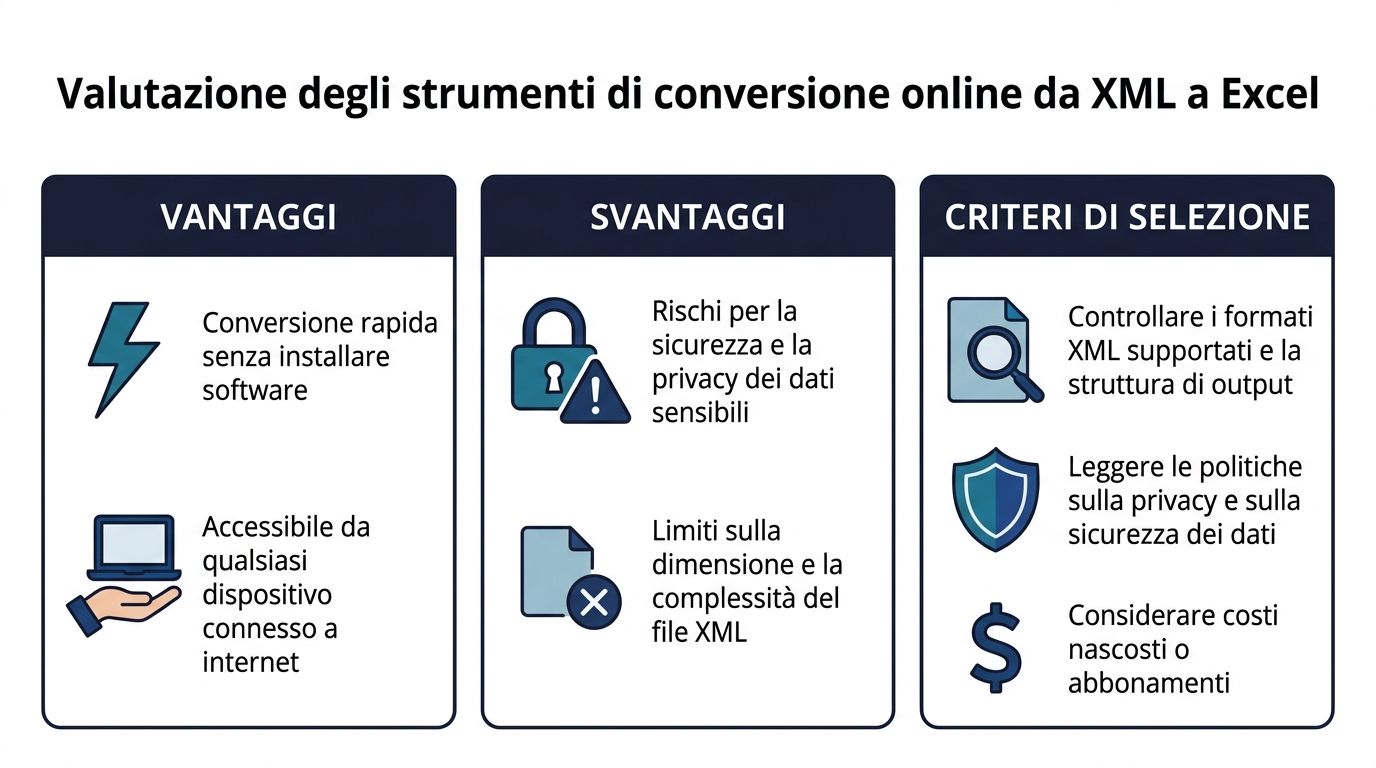
The main advantage is obvious: no installation, no configuration, and immediate access. This makes them convenient for simple files or for quickly checking the structure.
But the situation changes as soon as the file is large or sensitive. Excel has a limit of 1,048,576 rows, and this causes crashes in 62% of cases with large XML files. That’s why many users are turning to online converters that can handle files up to 100 GB. At the same time, Power Query in Excel 2010 has reduced import times by 70% compared to manual methods, making the native option much more competitive when the file is a manageable size and security matters (Sonra).
Before using an online converter, it’s a good idea to check three things:
Sensitivity of the data
If the file contains customer information, financial data, transaction records, or regulated documents, uploading it to an external service requires great caution.
Structural Fidelity Some tools handle simple XML well, but they collapse complex hierarchies into tables that are difficult to use.
Process repeatability
An online tool is fine for a one-time use. If the workflow becomes a recurring task, the lack of saved rules and automated checks quickly becomes a burden.
There are cases in which such use is reasonable:
| Scenario | A sensible choice |
|---|---|
| Test files or non-sensitive files | Yes, that should be enough |
| One-time analysis | Yes, if the structure is simple |
| Regulated or confidential data | It's best to avoid |
| Recurring flows with multiple rows | Not very suitable |
The professional rule of thumb is simple. If you’re just looking for a quick fix, an online converter can do the trick. If you’re looking for a reliable process, it’s almost never the best choice.
An XML file may appear to have been imported correctly but still be unusable for analysis. This often happens with exports from ERP systems, API feeds, electronic invoices, product catalogs, and legacy systems. The import completes without any obvious errors, but in Excel, you may see duplicate rows, empty fields, dates interpreted as text, or missing relationships between headers and details.
The key point is this: the problem doesn’t arise solely during the import process. It stems from the decision of how to translate a hierarchical structure into a tabular format without losing the context that the business needs.
There are four recurring issues: unmanaged namespaces, deep nesting, inconsistent data types, and data flattening that bloats the final file. Each of these has a tangible impact. Reports that don’t add up, useless pivot tables, longer verification times, and analyses that require manual corrections before they reach decision-makers.
If the goal is a reliable process, it is best to treat these cases as design rules rather than exceptions.
Many business XML files use different prefixes for different sections of the document. If Power Query, a script, or an XSLT transformer does not explicitly read them, some nodes may be missing even though the file is valid.
Practical solution:
This check prevents a common problem. The import appears to have succeeded, but entire sections—such as order lines, addresses, or product attributes—are missing.
Parent-child and one-to-many structures are the most challenging aspect. If you expand everything onto a single sheet, Excel replicates the top-level data for each child node. The result is a larger, slower, and less readable file.
Practical solution:
In practice, orders, order lines, and master data work better as related tables than as a single, flattened sheet.
Technically valid XML can contain dates in mixed formats, numbers with different separators, Boolean fields represented as strings, and empty values that Excel misinterprets. The problems arise later: incorrect filters, incorrect sums, and inconsistent sorting.
Practical solution:
This is one of the checks you should automate first, because it reduces repetitive manual corrections and improves the reliability of reporting.
The problem isn’t always the size of the original XML file. Often, the Excel file grows because relationships are incorrectly replicated during flattening. Each detail row carries duplicate master columns, which affects performance, opening times, and the quality of the analysis.
Practical solution:
With simple XML, a single table may be sufficient. With complex XML, this is almost never the case.
The most effective approach is to maintain a lightweight relational structure within Excel: one table for the main entities, one for the details, and one for the references. This preserves the meaning of the data, reduces duplication, and prepares the file for more robust pivot tables, controls, and analysis models.
This is where the difference between ad-hoc conversion and business automation becomes clear. If the process repeats every week or every day, every structural error results in wasted time, manual checks, and delays in reporting. That’s why the right question isn’t just “How do I open this XML file in Excel?”, but “How do I set up a conversion process that remains reliable as volumes increase and new file variations and exceptions arise?”
This step also lays the groundwork for end-to-end integration. Well-structured XML in Excel or an intermediate table integrates more easily into automated pipelines, dashboards, and AI analytics platforms such as ELECTE, where the quality of the initial structure directly impacts the quality of the final decisions.
Choosing the right method isn't strictly a technical matter. It's a process-oriented decision. The right method reduces manual work, errors, and the time it takes to prepare reports.
Power Query
The best choice for small to medium-sized files, recurring imports, and business users who want to work directly in Excel.
XSLT
The right choice when the output must adhere to specific rules and the XML structure requires granular control.
Python
The approach to take when the process is batch-based, frequent, or part of a larger pipeline.
Online tool
Useful only for quick, non-critical conversions that do not involve sensitive data.
When I need to evaluate an XML-to-Excel workflow, I consider four questions:
| Question | If the answer is yes | Preferred method |
|---|---|---|
| Does the file arrive sporadically? | Speed matters | Power Query |
| Should the output be standardized? | It's all about control | XSLT |
| Are there a lot of files, and do they come up frequently? | Scalability matters | Python |
| Is this just a quick test? | It's all about immediacy | Online |
Conversion is only the first level of efficiency. The real benefit comes when the chosen method remains reliable even under operational pressure.
A properly converted XML file streamlines operational workflows. The business results follow once the data enters a reliable workflow for analysis, monitoring, and reporting.
For many companies, Excel remains the primary tool for validating, annotating, and sharing data with finance, operations, or sales teams. At this stage, it’s important to standardize layouts, formulas, and checks—especially if the converted file is used to generate recurring reports. If you need a structured foundation for this phase, these Excel templates can help minimize unnecessary variations and make your analysis easier to read.
The limitations, however, soon become apparent. If the number of files increases, if they come from different sources, or if reporting requires frequent updates, a process that relies solely on Excel once again becomes dependent on manual steps, last-minute revisions, and versions that are difficult to track.
For end-to-end automation, the next step is a dedicated platform.
If you want to move beyond simple XML-to-Excel conversions to a more scalable process, ELECTE combines data preparation, analysis, and reporting into a single environment. It’s a smart choice when the goal isn’t just to open an XML file in Excel, but to transform that data stream into forecasts, risk monitoring, and automated reports that support decision-making.

.svg)


.svg)
.svg)